

Sometimes you may want to paste a long draft, article, transcript, brief, or research note into CopyHub chat.
To keep the chat easier to read, CopyHub can turn long pasted text into an attachment-style chip.
What the long-paste chip does
Instead of filling the chat box with a huge block of text, CopyHub may collapse long pasted content into a compact chip.
CopyHub can still use the pasted text as part of your request.
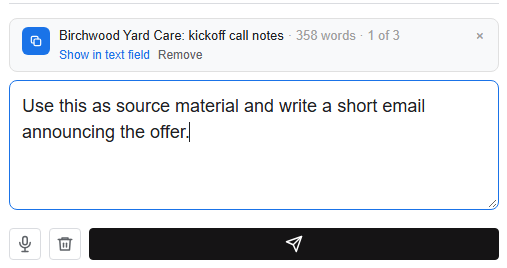
This makes it easier to add instructions like:
Summarize this.
Turn this into a LinkedIn post.
Find weak sections and suggest improvements.
How to show the full text
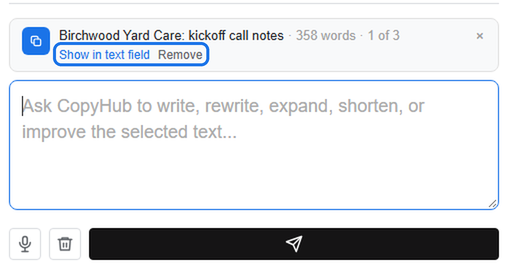
If you want to see or edit the pasted text in the chat box, use the option to show it in the text field.
This lets you review the full text before sending.
How to collapse it again
If the full text is showing and it takes up too much space, collapse it back into the attachment-style chip.
How to remove it
Use Remove if you pasted the wrong text or don’t want to include it anymore.
When this helps
The long-paste chip is useful for:
- Long drafts.
- Client notes.
- Research material.
- Interview transcripts.
- Existing articles.
- Strategy briefs.
Tip
After pasting long text, add a clear instruction.
For example:
Use this as source material and write a short email announcing the offer.
The pasted content gives CopyHub context. Your instruction tells CopyHub what to do with it.

I can suggest related Tech Help Canada articles based on the topic you’re reading now.

Tech Help Canada Staff researches, writes, and reviews practical content for business owners and professionals. Our coverage spans business, marketing, SEO, technology, and the tools and systems people use to grow and operate online. We focus on clear, useful information backed by research, hands-on experience, and editorial review. Learn more about our team and editorial standards. Need help with something? Contact Us