

Guest work doesn’t automatically move into your account when you log in.
This is intentional. CopyHub keeps guest work and account work separate so account documents don’t appear for the next guest user after someone logs out.
If you created something as a guest and want to save it to your account, use the steps below.
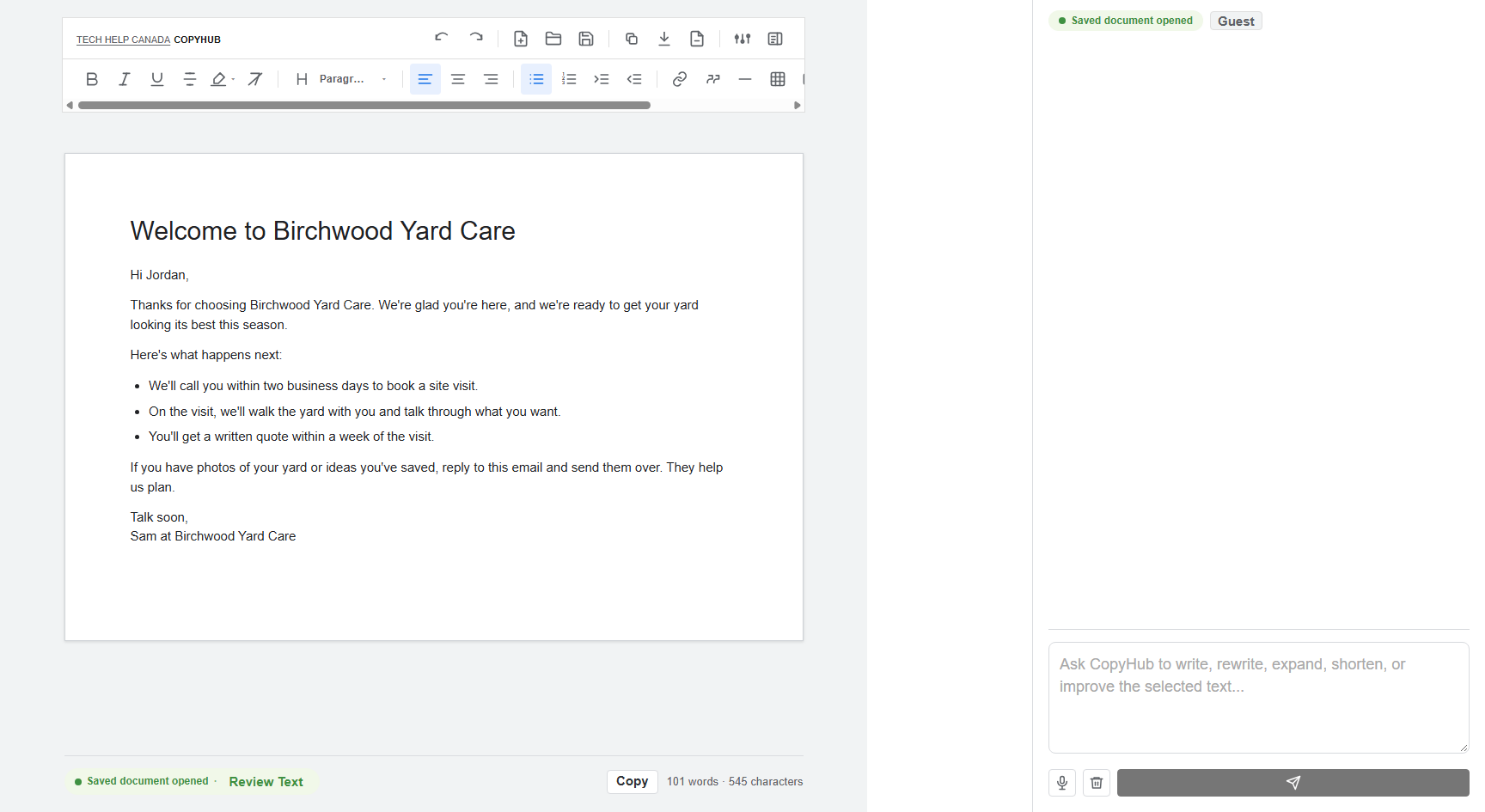
Step 1: Open CopyHub as a guest
If you’re currently logged in, log out first.
Go back to CopyHub in the same browser where you created the guest draft.
If the guest draft is still saved locally, it should appear in guest mode or inside your guest saved documents.
Step 2: Copy or export your guest draft
Open the guest document you want to keep.
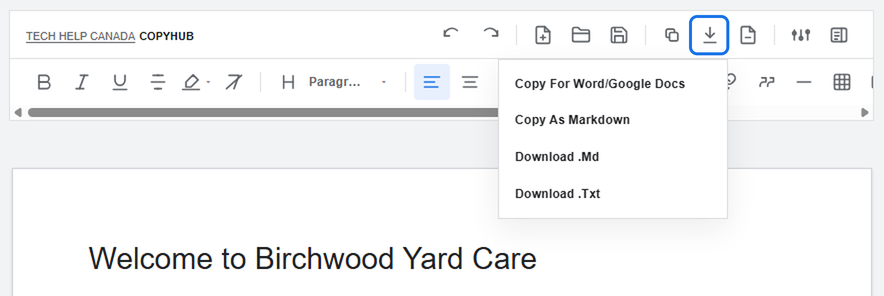
Then choose the option that fits your workflow:
- Use Copy to copy the full editor content.
- Use Copy for Word/Google Docs if you want rich formatting.
- Use Copy as Markdown if you use Markdown.
- Download the document as
.mdor.txt.
If you only need part of the draft, highlight and copy that section.
Step 3: Log in
Log in to your CopyHub account.
Once you’re logged in, CopyHub uses your account workspace instead of the guest workspace.
Step 4: Paste the draft into the editor
Paste the copied guest content into the editor.
Check the formatting, headings, links, and spacing.
If the formatting needs work, ask CopyHub to help.
For example:
Fix the formatting in this draft without changing the meaning.
Step 5: Save the document
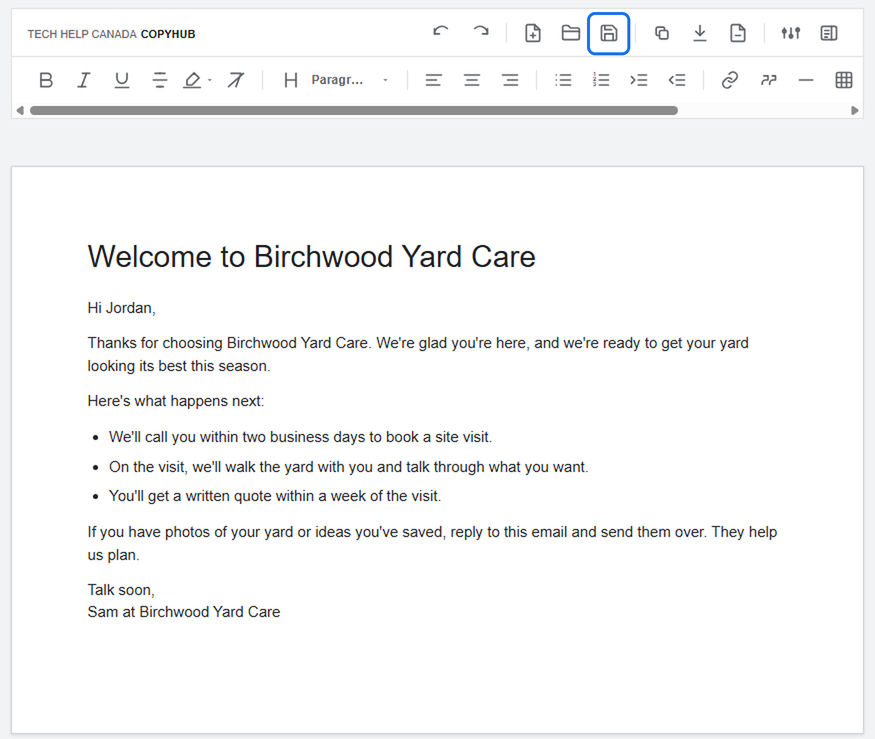
Click Save.
The document is now saved inside your account workspace.
What to expect
After moving the content manually, you may still see the original guest version if you log out and return to guest mode in the same browser.
If you don’t want that guest version saved on the browser anymore, use the Guest badge menu and choose Clear Saved Guest Data.

I can suggest related Tech Help Canada articles based on the topic you’re reading now.

Tech Help Canada Staff researches, writes, and reviews practical content for business owners and professionals. Our coverage spans business, marketing, SEO, technology, and the tools and systems people use to grow and operate online. We focus on clear, useful information backed by research, hands-on experience, and editorial review. Learn more about our team and editorial standards. Need help with something? Contact Us