

CopyHub includes a saved documents panel where you can keep, reopen, organize, and export your work.
How to save a document
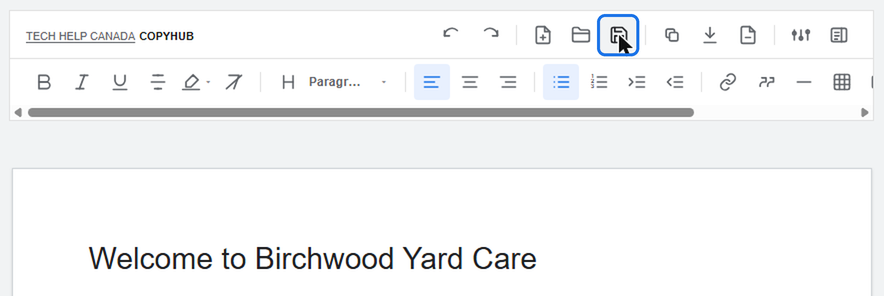
When you have content in the editor, click Save.
If you’re logged in, the document can save to your account.
If you’re a guest, the document is saved locally in your browser unless private guest mode is on.
How to open saved documents
Click Saved Documents.
You can browse your saved documents, search by title, and sort the list.
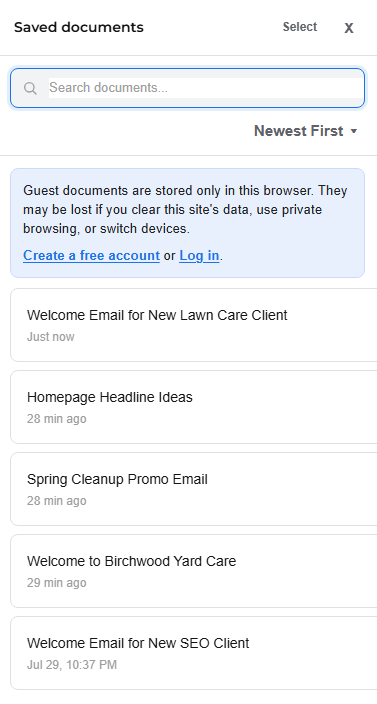
Click a document to open it.
If your current draft has unsaved changes, CopyHub may ask whether you want to save it first.
What you can do in saved documents
Depending on the document, you can:
- Open it.
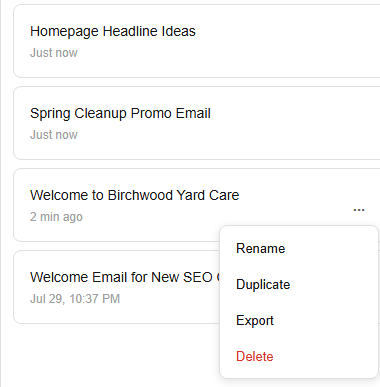
- Rename it.
- Duplicate it.
- Export it.
- Delete it.
- Select multiple documents.
- Bulk export selected documents.
- Bulk delete selected documents.
Delete actions may ask for confirmation before removing anything.
Guest documents vs account documents
Guest saved documents are stored only in the browser.
Logged-in saved documents can be connected to your account.
Guest documents and account documents are separate.
If you create a document as a guest, then log in, that guest document may not automatically appear in your account workspace.
If you want a guest document saved to your account, copy or export it first, log in, paste it into the editor, and save it again.
Searching and sorting
Use search when you have many saved documents.
Use sorting to find the newest, oldest, or alphabetically organized documents.
Tip
Give important documents clear titles. The first main heading in the editor helps CopyHub identify the document title.

I can suggest related Tech Help Canada articles based on the topic you’re reading now.

Tech Help Canada Staff researches, writes, and reviews practical content for business owners and professionals. Our coverage spans business, marketing, SEO, technology, and the tools and systems people use to grow and operate online. We focus on clear, useful information backed by research, hands-on experience, and editorial review. Learn more about our team and editorial standards. Need help with something? Contact Us