

One of CopyHub’s most useful features is selected-text editing.
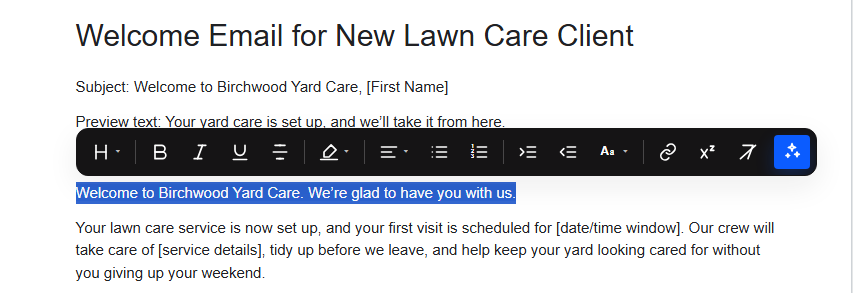
Instead of rewriting the whole document, you can highlight one sentence, paragraph, headline, or section and ask CopyHub to improve only that part.
How to edit selected text
- Highlight the text you want to change.
- Use the floating toolbar or type your instruction in chat.
- Tell CopyHub what you want changed.
For example:
Make this stronger.
Shorten this paragraph.
Turn this into an H2.
Rewrite this in a warmer tone.
Make this more direct and less formal.
What CopyHub should do
When text is selected, CopyHub should focus on that selected text.
It shouldn’t rewrite the entire document unless you ask it to.
This lets you keep your manual edits and improve only the parts that need work.
Why context still matters
Even when you select a small section, CopyHub can use the surrounding document for context.
That helps it revise the selected text in a way that fits the rest of the draft.
Good selected-text prompts
Try prompts like:
Make this sound more specific.
Add more urgency without making it hypey.
Rewrite this for small business owners.
Make this headline clearer.
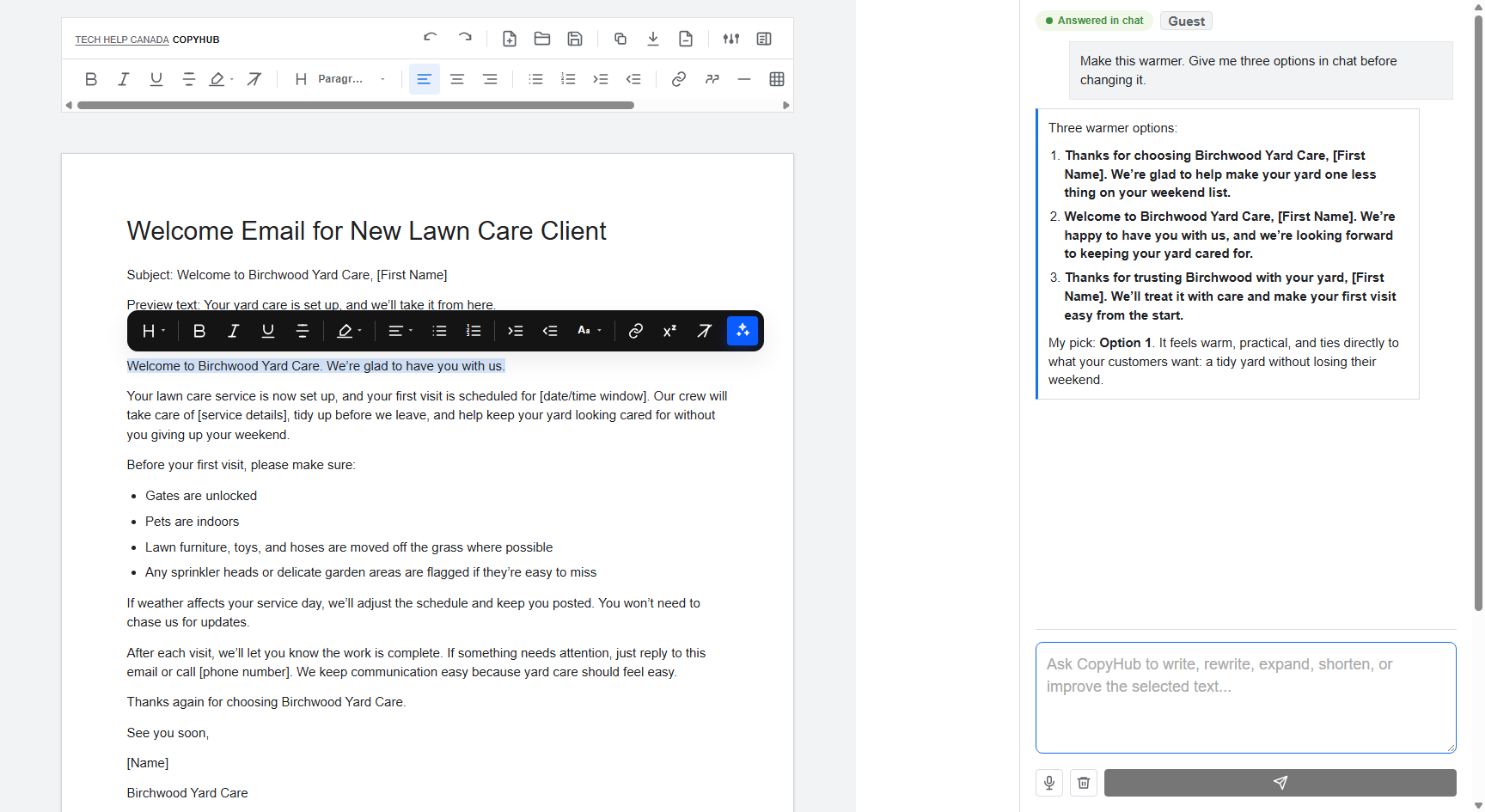
Give me three options in chat before changing it.
If you want suggestions first
If you don’t want CopyHub to change the draft yet, say:
Give me before-and-after suggestions in chat first.
Then, when you choose one, say:
Apply option 2.
Tip
Selected-text editing is the best way to polish a draft without losing work you already like.

I can suggest related Tech Help Canada articles based on the topic you’re reading now.

Tech Help Canada Staff researches, writes, and reviews practical content for business owners and professionals. Our coverage spans business, marketing, SEO, technology, and the tools and systems people use to grow and operate online. We focus on clear, useful information backed by research, hands-on experience, and editorial review. Learn more about our team and editorial standards. Need help with something? Contact Us