The best monitor for your eyes isn’t the one with the biggest “eye care” badge on the box.
It’s the one that helps you read clearly, avoid glare, sit comfortably, and keep the screen from fighting your room lighting. Low blue light and flicker-free features can help, but they don’t replace good ergonomics, proper brightness, regular breaks, and an up-to-date vision prescription.
If your eyes feel tired after a full workday, start with the monitor. Then fix the setup around it.
What Actually Helps Reduce Eye Strain?
Digital eye strain usually comes from a mix of problems: staring without blinking enough, glare, poor screen distance, text that’s too small, bad posture, and lighting that doesn’t match your display.
The American Optometric Association recommends placing your screen about 20 to 28 inches from your eyes, with the center of the screen roughly 15 to 20 degrees below eye level. It also recommends looking into the distance for 20 seconds every 20 minutes to give your eyes a chance to refocus.
When you’re choosing a monitor, prioritize these features:
Flicker-free backlight
Adjustable brightness that can go low enough for your room
Low blue light mode or hardware-based blue light reduction
Anti-glare coating
Height, tilt, swivel, and pivot adjustment
Sharp text, usually 1440p on 27 inches or 4K on 27 to 32 inches
A screen size that lets you work without squinting
Blue light deserves a quick reality check. Screen blue light isn’t the main reason your eyes feel tired, and it hasn’t been shown to permanently damage your eyes in normal computer use. Still, a warmer low-blue-light mode can feel more comfortable at night and may help reduce harshness during long reading sessions.
Best Computer Monitors for Eyes
1. BenQ GW2790QT: Best Overall Eye-Comfort Monitor
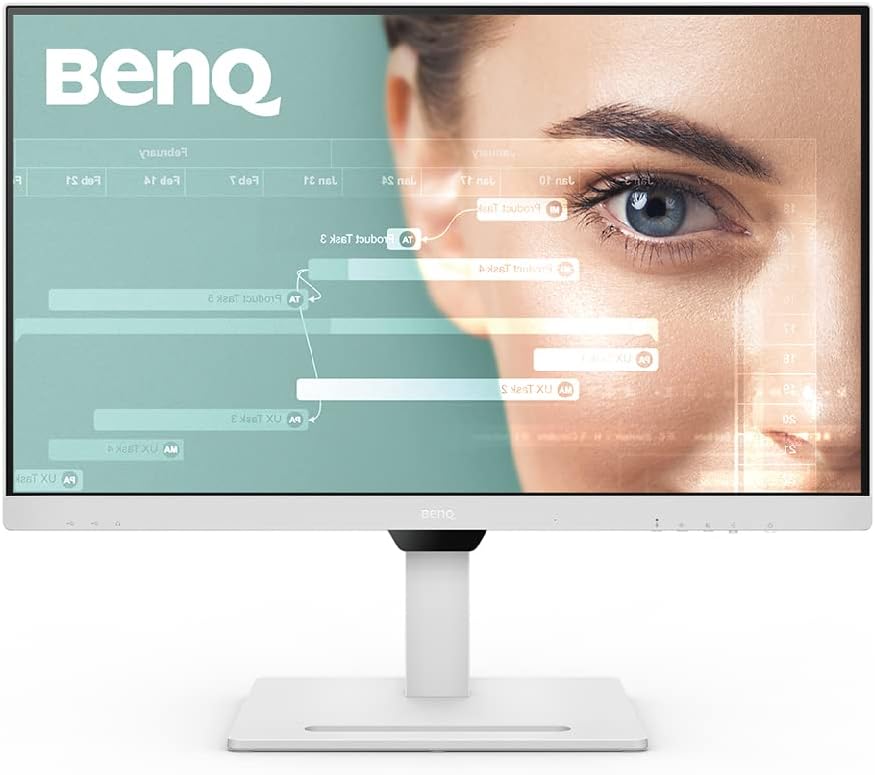
The BenQ GW2790QT is one of the strongest all-around picks for office work, studying, writing, coding, and long reading sessions. It gives you a 27-inch QHD IPS panel, 2560×1440 resolution, a 75Hz refresh rate, USB-C with 65W power delivery, and a fully adjustable stand.
BenQ also includes a deep eye-comfort feature set: flicker-free technology, Brightness Intelligence Gen2, Low Blue Light Plus, ePaper mode, and an eye reminder. That combination makes it more useful than a basic monitor that only adds a blue light setting in the menu.
Best for: Home office users, writers, students, and anyone who reads text for hours.
Why it works: QHD looks sharper than 1080p at 27 inches, and the ergonomic stand makes it easier to place the screen correctly.
Best overall eye-comfort monitor
BenQ GW2790QT
A strong all-around monitor for office work, studying, writing, coding, and long reading sessions, with QHD clarity, USB-C, a fully adjustable stand, and BenQ’s deeper eye-comfort feature set.
Why we like it
QHD resolution looks sharper than 1080p at 27 inches, which can make text easier to read.
The fully adjustable stand makes it easier to place the screen at a comfortable height and angle.
USB-C with 65W power delivery helps simplify laptop desk setups.
BenQ’s eye-comfort features include flicker-free technology, Brightness Intelligence Gen2, Low Blue Light Plus, ePaper mode, and an eye reminder.
Worth knowing
This is a work-first monitor, not a gaming-first display.
Product Specs
Best UseHome office, writing, studying, coding, and long reading sessions
2. Dell UltraSharp U2724D: Best Premium Office Monitor
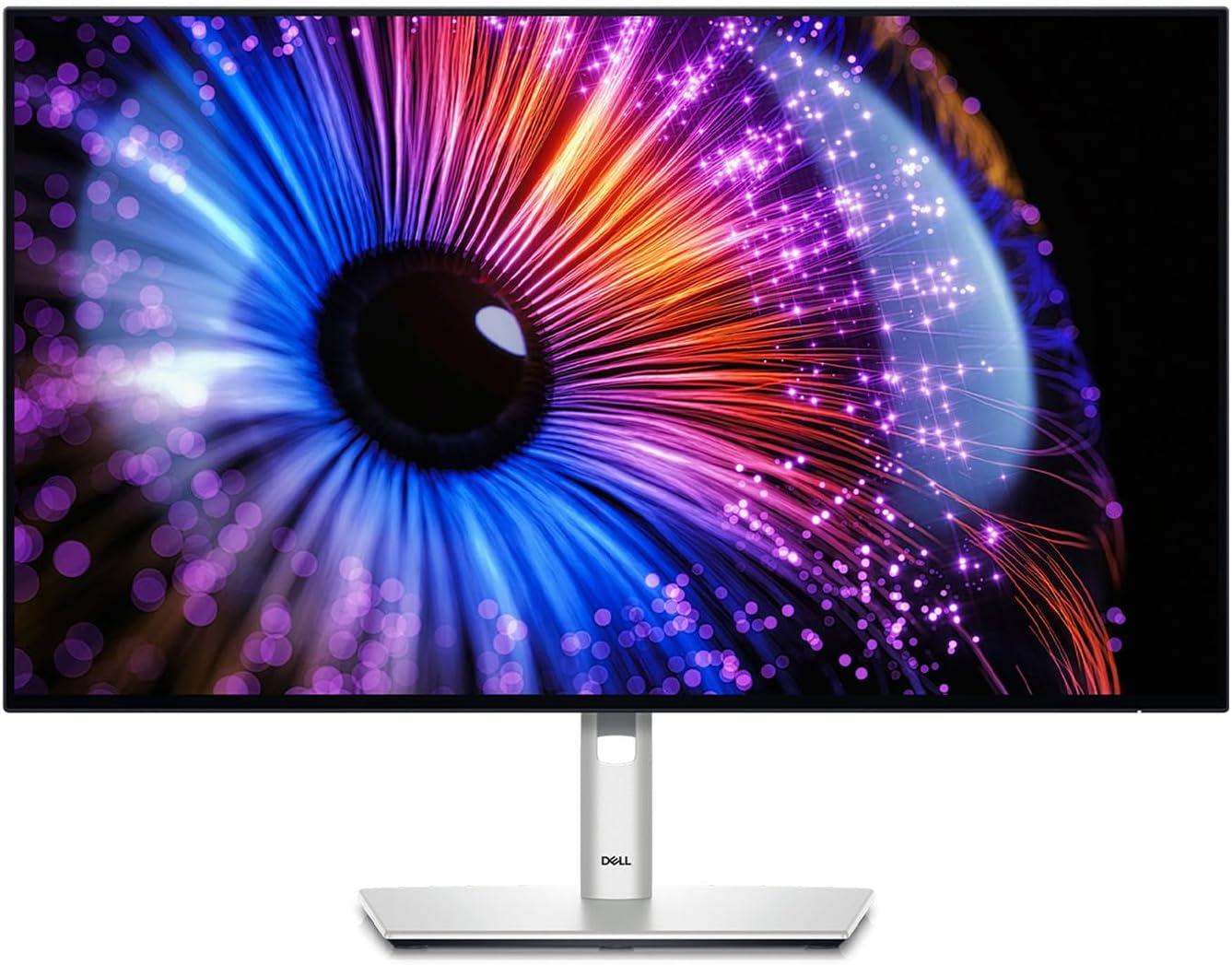
The Dell UltraSharp U2724D is a premium 27-inch QHD office monitor to check if you want a sharper, smoother office display. Dell’s ComfortView Plus is designed to reduce blue light while keeping color usable, which makes it a better fit for long workdays than many basic office monitors.
The 120Hz refresh rate is also a nice bonus. You don’t need 120Hz for spreadsheets, but smoother cursor movement and scrolling can feel easier on your eyes than a basic 60Hz panel.
Best for: Professionals who want a polished office monitor with strong text clarity.
Why it works: QHD resolution, smoother motion, and Dell’s comfort-focused display features make it a better long-term desk display than many bargain monitors.
Best premium office monitor
Dell UltraSharp U2724D
A polished 27-inch QHD office monitor for professionals who want strong text clarity, smoother motion, and Dell’s ComfortView Plus display technology for long workdays.
Why we like it
QHD resolution gives you sharper text than a basic 1080p office monitor.
Dell’s ComfortView Plus is designed to reduce blue light while keeping colors usable.
The 120Hz refresh rate can make scrolling and cursor movement feel smoother during everyday work.
It fits professionals who want a more polished long-term desk display.
Worth knowing
This is a premium office pick, not the cheapest way to get a basic 27-inch monitor.
Product Specs
Best UseProfessional office work and long desk sessions
Screen Size27-inch
ResolutionQHD / 2560 x 1440
Refresh Rate120Hz
Comfort FeatureComfortView Plus
Best FitProfessionals who want sharper text and smoother office motion
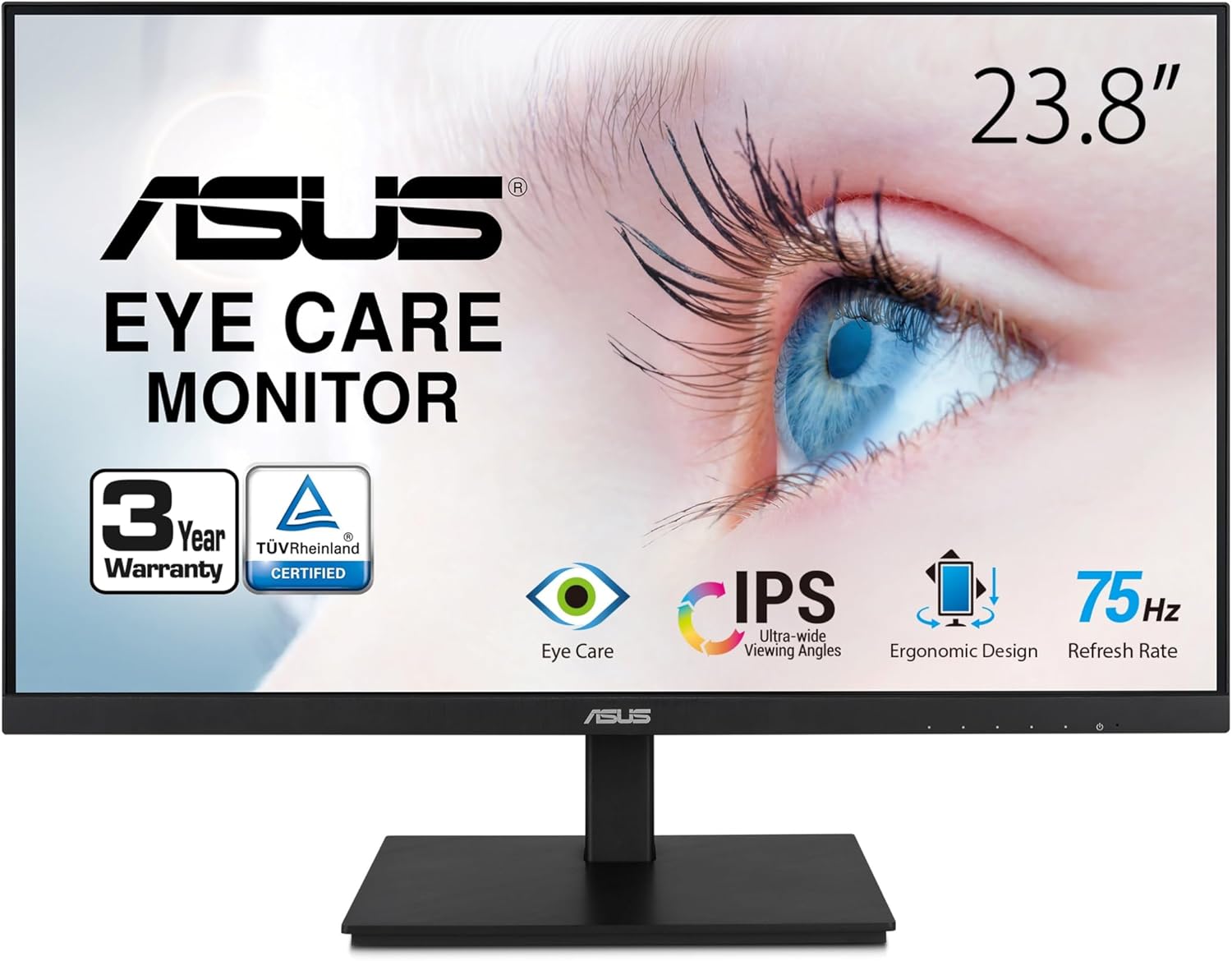
The ASUS VA24DQSB is a practical 24-inch Full HD monitor with the comfort features budget shoppers should look for first. It has an IPS panel, up to 75Hz refresh rate, Adaptive-Sync, low blue light, flicker-free technology, and a stand with height, tilt, swivel, and pivot adjustment.
That last part matters. Many cheap monitors include “eye care” features but ship with a basic tilt-only stand. If you can’t raise the screen to the right height, your neck and eyes pay for it.
Best for: Budget-conscious office users who still want a proper adjustable stand.
Why it works: It covers the comfort basics without pushing you into premium pricing.
Best budget ergonomic monitor
ASUS VA24DQSB
A practical 24-inch Full HD monitor for budget-conscious office users who still want important comfort basics, including an IPS panel, low blue light, flicker-free technology, and a fully adjustable stand.
Why we like it
The fully adjustable stand gives you height, tilt, swivel, and pivot control, which many cheap monitors skip.
Low blue light and flicker-free technology cover the core comfort features budget shoppers should look for.
The 24-inch Full HD setup works well for standard office work, email, browsing, and school use.
It keeps the focus on practical comfort instead of paying extra for specs many office users do not need.
Worth knowing
Full HD at 24 inches is practical, but it will not look as sharp as the 27-inch QHD or 4K picks.
Product Specs
Best UseBudget office work, school, email, and everyday desk use
Screen Size24-inch
ResolutionFull HD / 1920 x 1080
Panel TypeIPS
Refresh RateUp to 75Hz
Stand AdjustmentHeight, tilt, swivel, and pivot
Comfort FeaturesLow blue light and flicker-free technology
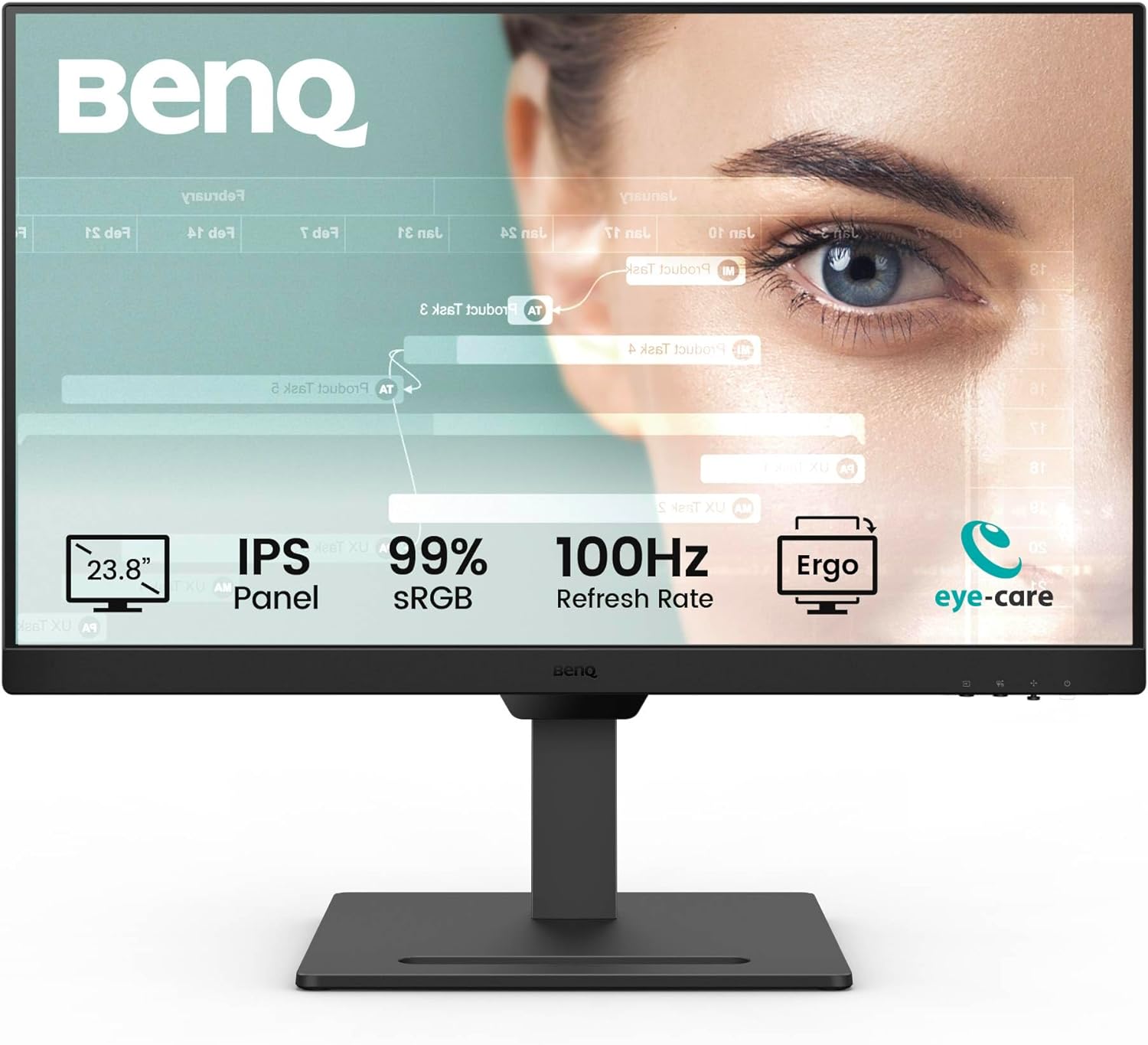
The BenQ BL2490T is a good fit if you want a smaller monitor with modern office comfort features. Depending on the current regional listing, look for a 23.8-inch Full HD panel, flicker-free technology, low blue light protection, and BenQ’s brightness adjustment features.
The 24-inch size is useful for small desks, dorm rooms, and secondary-monitor setups. Text won’t be as crisp as a 27-inch QHD screen, but it can still be comfortable if you sit at a reasonable distance and scale your text properly.
Best for: Small desks, second monitors, and compact workspaces.
Why it works: It gives you the right comfort features in a size that doesn’t overwhelm a small setup.
Best 24-inch work monitor
BenQ BL2490T
A compact work monitor for small desks, secondary setups, dorm rooms, and home offices where you want practical comfort features without moving up to a larger 27-inch display.
Why we like it
The 24-inch size is easier to fit on small desks and compact workstations.
It gives you a more comfortable second-screen option without overwhelming your setup.
BenQ’s office comfort features make it more useful than a basic small monitor.
It works well for everyday writing, admin work, browsing, schoolwork, and secondary-monitor use.
Worth knowing
Text will not look as crisp as it does on a 27-inch QHD or 4K monitor.
Product Specs
Best UseSmall desks, second monitors, dorm rooms, and compact workspaces
Screen Size23.8-inch / 24-inch class
ResolutionFull HD / 1920 x 1080
Comfort FeaturesFlicker-free technology, low blue light protection, and brightness adjustment features
Best FitUsers who want a smaller work monitor with comfort-focused basics
Setup TypePrimary compact display or secondary monitor
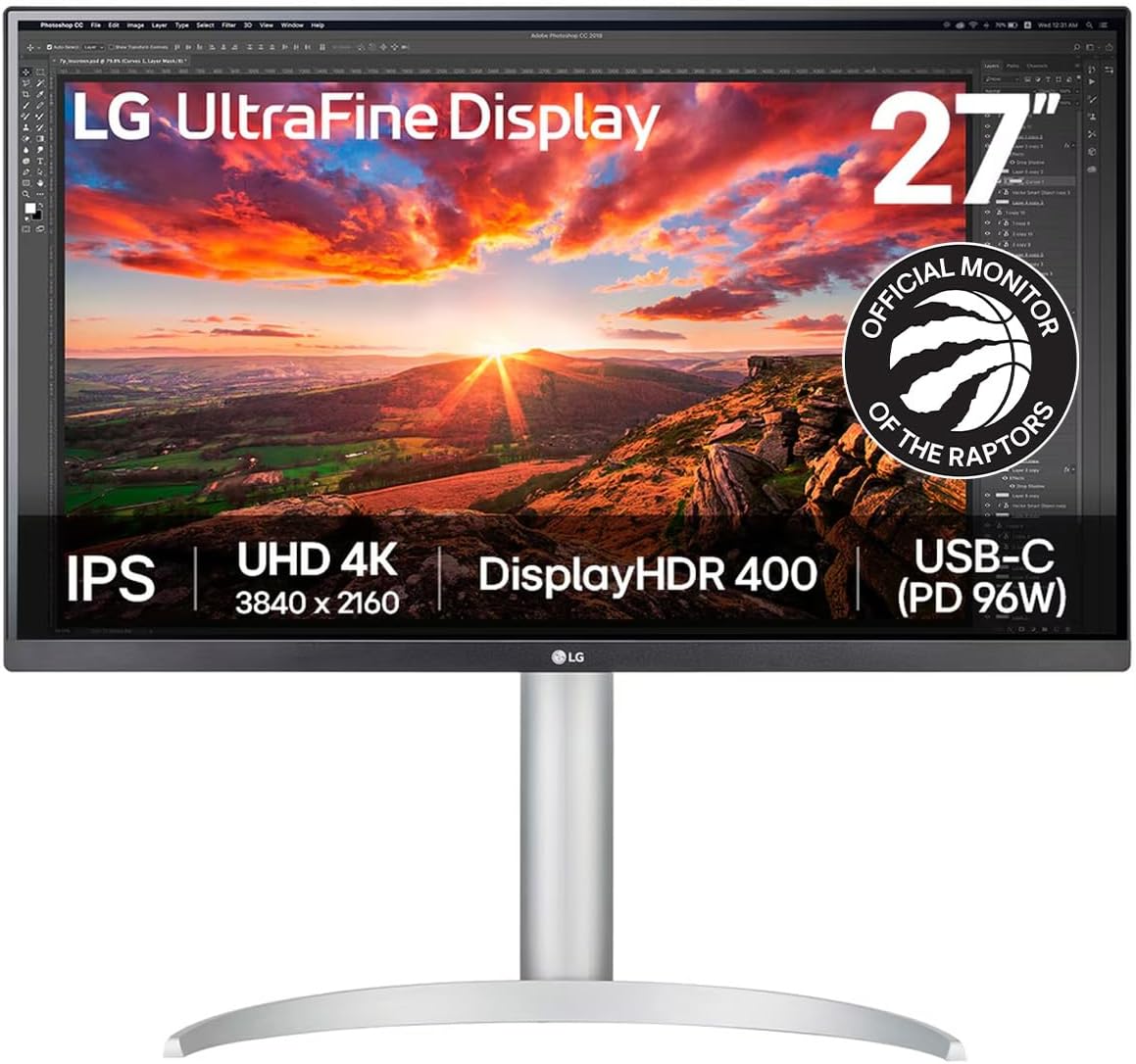
5. LG 27UP850 or Similar 27-Inch 4K IPS Monitor: Best for Sharp Text
If text clarity is your main complaint, a 27-inch 4K IPS monitor can make a major difference. The higher pixel density makes fonts look smoother, which can reduce the urge to lean forward or squint.
Look for a model with an anti-glare coating, adjustable stand, USB-C if you use a laptop, and low blue light or reader mode. LG’s 27-inch 4K USB-C monitors are popular in this category, but the buying principle matters more than the exact model: get 4K clarity, good ergonomics, and brightness control.
Best for: Writers, editors, designers, and MacBook users who want crisp text.
Why it works: Higher pixel density makes reading easier when scaling is set properly.
Best for sharp text
LG 27UP850-Type 27-Inch 4K IPS Monitor
A 27-inch 4K IPS monitor is the right direction if text clarity is your biggest complaint. The higher pixel density can make fonts look smoother and reduce the urge to lean forward or squint.
Why we like it
4K resolution at 27 inches gives you much sharper text than a standard 1080p monitor.
The IPS panel format is a strong fit for reading, writing, editing, and general creative work.
USB-C support can make laptop setups cleaner when the current model includes it.
It is a smart direction for writers, editors, designers, and MacBook users who want crisp text.
Worth knowing
LG’s 27-inch 4K models vary by listing, so check the current product page for stand adjustment, USB-C, and reader-mode details.
Product Specs
Best UseSharp text, writing, editing, design work, and MacBook setups
Screen Size27-inch
Resolution4K / 3840 x 2160
Panel TypeIPS
Comfort FeaturesLook for anti-glare coating, brightness control, and low blue light or reader mode
Helpful ExtraUSB-C, when included on the current model
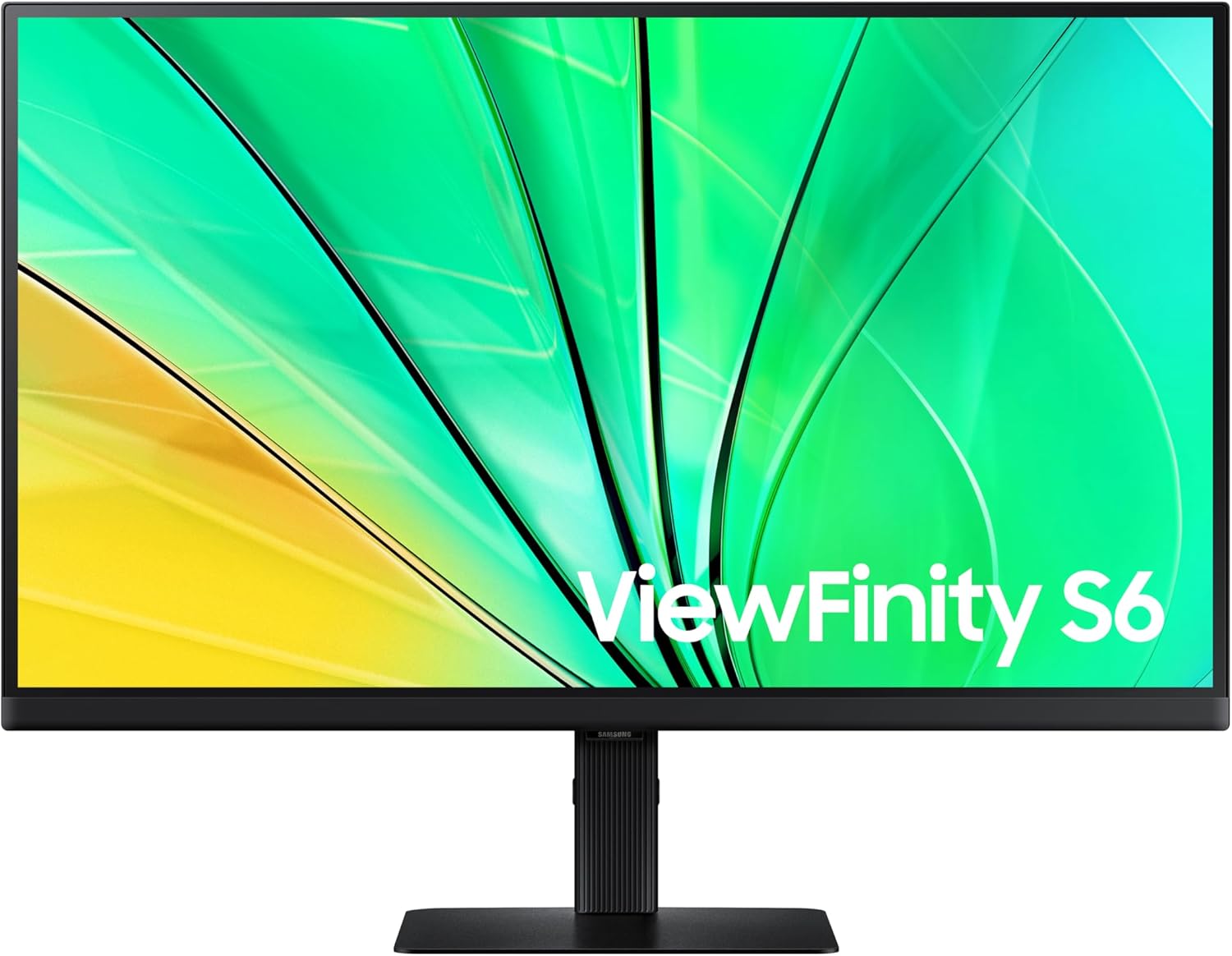
6. Samsung ViewFinity S6 or S8: Best for Productivity and Multitasking
Samsung’s ViewFinity line is worth considering if you want a work-first monitor with sharp resolution, Eye Saver Mode, flicker reduction, and strong productivity features. The S6 line often targets QHD productivity, while S8 models move into 4K.
For long workdays, choose the size and resolution based on your desk:
27-inch QHD for general office use
27-inch 4K for sharper text
32-inch 4K if you need more space and can sit farther back
Fit check:
Best for: Office workers who want more screen room without jumping into ultrawide.
Why it works: The right ViewFinity setup can replace a cramped dual-monitor arrangement.
Best for productivity and multitasking
Samsung ViewFinity S6 or S8
A work-first monitor line worth considering if you want sharper resolution, Samsung’s eye-comfort features, and more room for productivity without jumping straight into an ultrawide setup.
Why we like it
The ViewFinity line gives office users a practical path to sharper QHD or 4K productivity displays.
Samsung’s Eye Saver Mode and flicker-reduction features are useful for long desk sessions.
The right size and resolution can give you more workspace without needing a cramped dual-monitor setup.
It works well for office workers who want more screen room but do not necessarily want an ultrawide monitor.
Worth knowing
Choose the size and resolution carefully: 27-inch QHD is easier for general office use, while 32-inch 4K works better when you can sit farther back.
Product Specs
Best UseProductivity, multitasking, and larger desk setups
Screen SizeUsually 27-inch or 32-inch, depending on model
ResolutionQHD on many S6 models; 4K on many S8 models
Comfort FeaturesEye Saver Mode and flicker reduction
Best FitOffice workers who want more screen room without going ultrawide
Buying NoteMatch the size and resolution to your desk depth
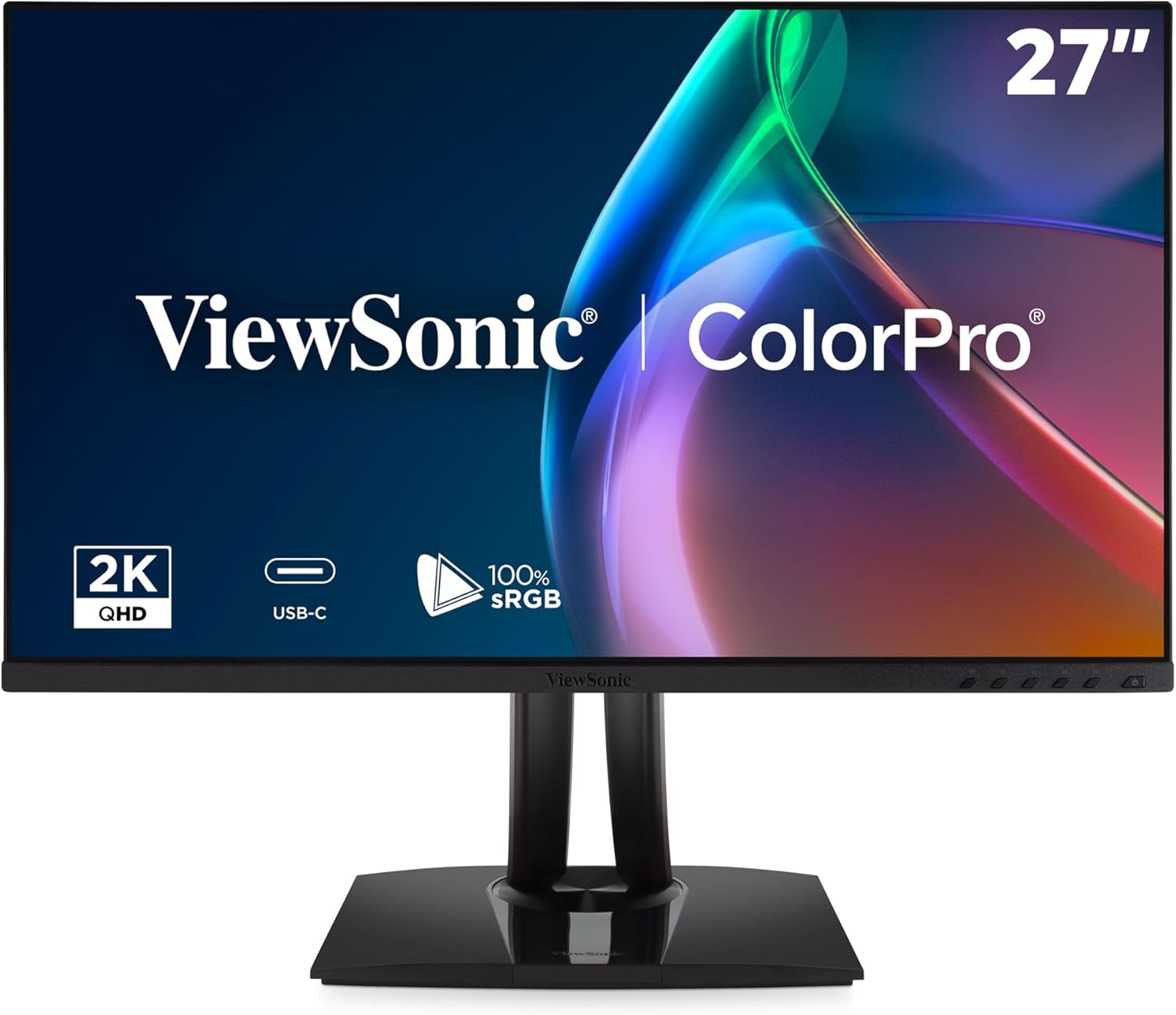
The ViewSonic VG2756-2K is a practical 27-inch QHD USB-C monitor for laptop users. It gives you a sharp work-friendly resolution, USB-C docking, and an ergonomic stand, which helps keep your desk simpler and your screen easier to position.
USB-C isn’t an eye-care feature by itself, but it reduces desk clutter. Less cable mess makes it easier to place your monitor, keyboard, and laptop where they should be instead of where the cords force them to sit.
Best for: Laptop users who want one-cable docking and QHD clarity.
Why it works: It combines practical office ergonomics with a sharper-than-1080p panel.
Best USB-C work monitor
ViewSonic VG2756-2K
A practical 27-inch QHD USB-C monitor for laptop users who want sharper-than-1080p text, one-cable docking, and an ergonomic stand that makes the screen easier to position.
Why we like it
QHD resolution gives laptop users a sharper work-friendly display than 1080p.
USB-C docking helps simplify the desk setup and reduce cable clutter.
The ergonomic stand makes it easier to place the screen where it should be.
It is a strong fit for laptop users who want one-cable docking and QHD clarity.
Worth knowing
USB-C is a desk-simplifying feature, not an eye-care feature by itself.
Product Specs
Best UseLaptop workstations, one-cable desk setups, and home offices
Screen Size27-inch
ResolutionQHD / 2560 x 1440
ConnectionUSB-C docking
StandErgonomic stand
Best FitLaptop users who want sharper text and less cable clutter
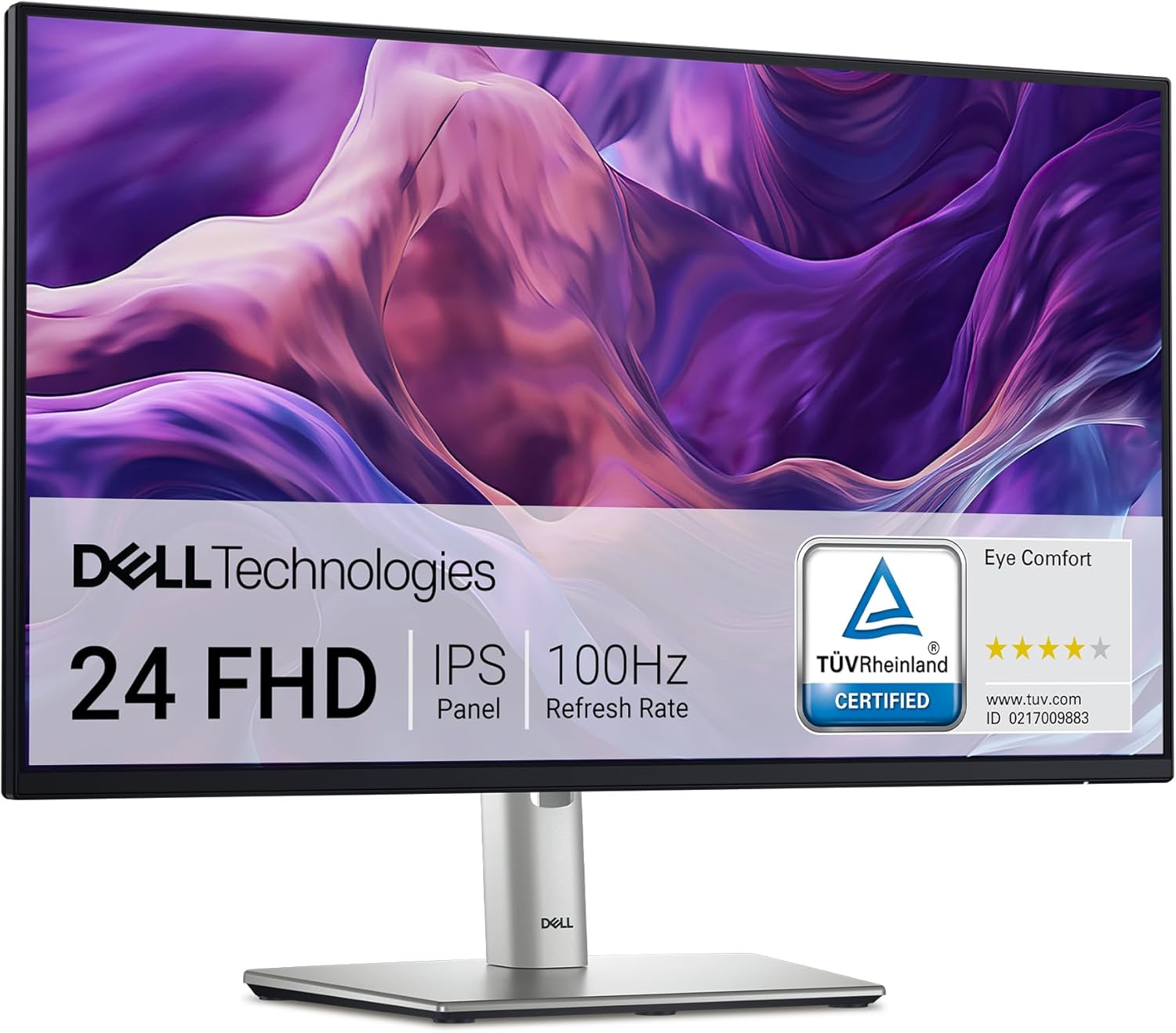
8. Dell P2425H or Similar 24-Inch Business Monitor: Best Reliable Office Pick
If you don’t need 4K or gaming specs, a good 24-inch business monitor can be the right answer. Dell’s P-series monitors are built for office use, with adjustable stands, anti-glare screens, and comfort-focused display modes.
This is a better direction than buying the cheapest 24-inch monitor you can find. A stable stand and comfortable brightness control will affect your day more than a slightly flashier spec sheet.
Best for: Standard office work, email, spreadsheets, and basic home-office setups.
Why it works: Business monitors usually get the ergonomic basics right.
Best reliable office pick
Dell P2425H
A dependable 24-inch business monitor for standard office work, email, spreadsheets, and home-office setups where ergonomics matter more than flashy specs.
Why we like it
Dell’s P-series monitors are built for office use, with practical ergonomics and desk-friendly features.
The adjustable stand makes it easier to set the monitor at a comfortable height and angle.
The anti-glare screen helps reduce reflections in typical home-office and business setups.
It is a better direction than buying the cheapest 24-inch monitor and living with a weak stand.
Worth knowing
This is a reliable office monitor, not the right pick if you need 4K sharpness or gaming-focused specs.
Product Specs
Best UseStandard office work, email, spreadsheets, and basic home-office setups
Screen Size24-inch class
ResolutionFull HD / 1920 x 1080
Display TypeBusiness monitor
Comfort FeaturesAnti-glare screen and comfort-focused display modes
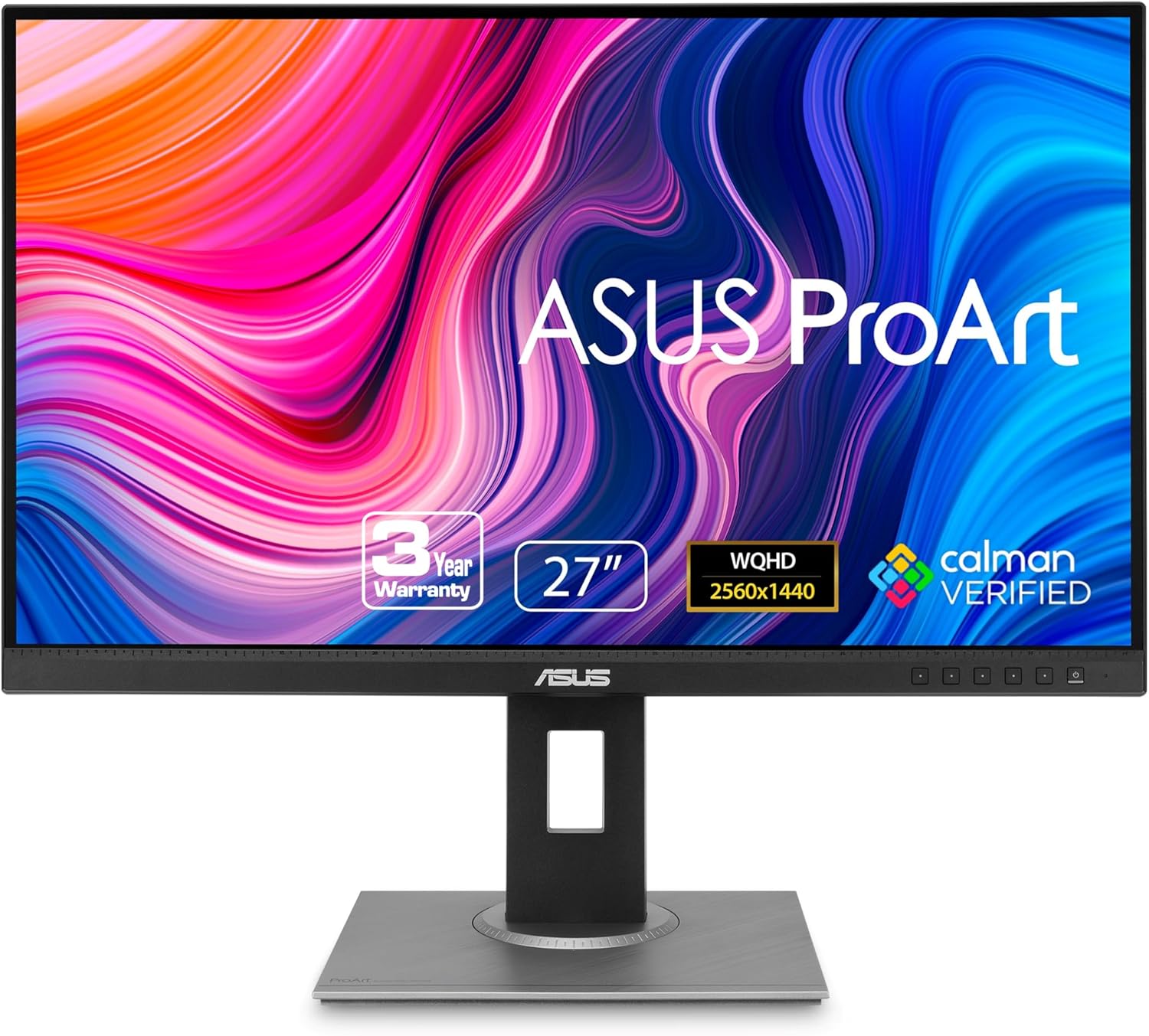
9. ASUS ProArt PA278QV or Similar 27-Inch QHD Creative Monitor: Best for Color Work
If you edit photos, design graphics, or work with visual content, choose a monitor that balances eye comfort with color accuracy. ASUS ProArt monitors are popular because they focus on factory-calibrated color and practical desk use.
For eye comfort, choose a 27-inch QHD IPS model with flicker-free technology, low blue light features, and a stand that lets you adjust height and angle. Avoid glossy screens unless you can control your lighting.
Best for: Designers, photographers, and creators who need better color than a basic office monitor.
Why it works: It keeps text and color work comfortable without forcing you into a gaming monitor.
Best for color work
ASUS ProArt PA278QV or Similar 27-Inch QHD Creative Monitor
A practical creative monitor direction for designers, photographers, and visual-content creators who want better color accuracy without giving up everyday eye-comfort features.
Why we like it
ASUS ProArt monitors are built around factory-calibrated color and practical desk use.
A 27-inch QHD IPS setup gives creators sharper text and more workspace than a basic 1080p monitor.
Flicker-free technology and low blue light features help keep long creative sessions more comfortable.
The adjustable stand makes it easier to position the screen for better posture and less glare.
Worth knowing
Avoid glossy screens unless you can control your lighting, especially if you work with visual content for long stretches.
Product Specs
Best UseDesign, photography, visual content, and color-sensitive desk work
Screen Size27-inch class
ResolutionQHD / 2560 x 1440
Panel TypeIPS
Creative FeatureFactory-calibrated color focus
Comfort FeaturesFlicker-free technology, low blue light features, and adjustable stand
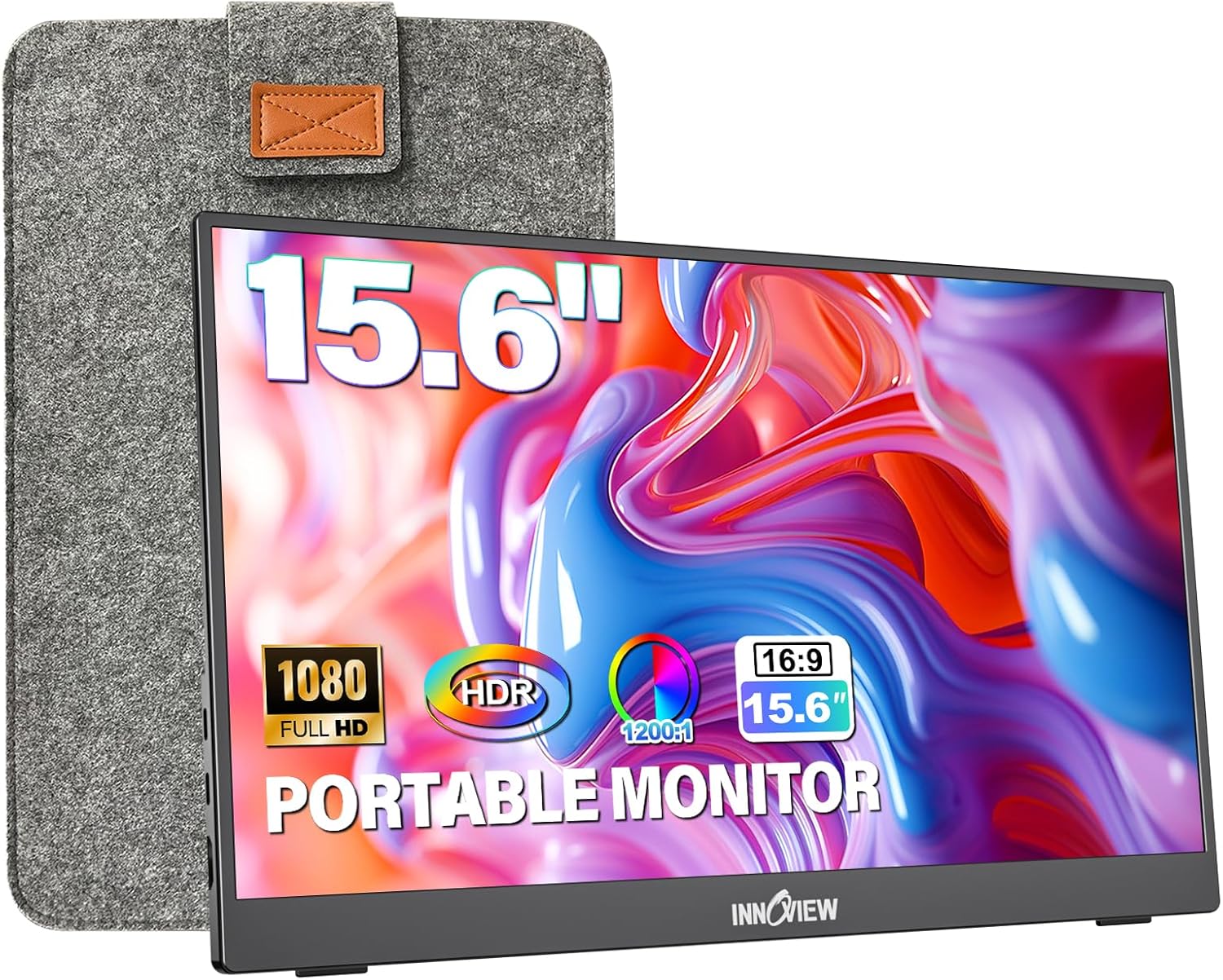
10. InnoView Portable Monitor: Best Travel-Friendly Second Screen
A portable monitor like the InnoView Portable Monitor won’t beat a good desktop display for comfort, but it can help if your laptop screen is too small. A 15.6-inch portable monitor gives you more room for documents, chat, dashboards, or reference material while traveling.
Choose one with IPS, matte coating, low blue light mode, and enough brightness control. Then place it on a stand whenever possible. If the portable screen sits too low, you’ll trade eye strain for neck strain.
Best for: Remote workers, students, and travelers who need a second screen.
Why it works: More screen space can reduce squinting and tab switching, as long as the screen is positioned well.
Best travel-friendly second screen
InnoView Portable Monitor
A travel-friendly second screen for remote workers, students, and travelers who need more space than a laptop display can comfortably provide.
Why we like it
A portable monitor gives you extra room for documents, dashboards, chat, or reference material while traveling.
The 15.6-inch class size can help reduce squinting and constant tab switching compared with working from a laptop screen alone.
It is useful for remote workers and students who move between desks, classrooms, coworking spaces, or hotels.
Look for IPS, matte coating, low blue light mode, and brightness control for a more comfortable portable setup.
Worth knowing
A portable screen will not beat a good desktop monitor for comfort, and it should be placed on a stand whenever possible.
Product Specs
Best UseTravel, remote work, school, and laptop second-screen setups
Screen Size15.6-inch class
Display TypePortable monitor
Comfort FeaturesLook for IPS, matte coating, low blue light mode, and brightness control
Best FitRemote workers, students, and travelers who need a second screen
Setup NoteUse a stand when possible to avoid trading eye strain for neck strain
For most people, 27-inch QHD is the sweet spot. Text is sharper than 1080p, the screen isn’t too large for a normal desk, and you get enough space for side-by-side work.
Good pairings:
24-inch: 1080p is fine
27-inch: 1440p is better than 1080p
27 to 32-inch: 4K is excellent for text clarity
34-inch ultrawide: useful if you replace two monitors, but check desk depth
Don’t buy eye comfort without ergonomics
A monitor with low blue light but a bad stand is only half useful. You need height adjustment, tilt, and ideally swivel. If the monitor you like has a weak stand, make sure it supports a VESA monitor arm.
Your eyes, neck, and shoulders are connected during screen work. Poor posture can make eye fatigue feel worse.
Match brightness to your room
Your monitor shouldn’t glow like a flashlight in a dark room or look dull beside a bright window. Adjust brightness until the screen feels like it belongs in the room.
If you work near a window, use blinds or move the monitor so light doesn’t bounce off the screen. Anti-glare coating helps, but it can’t fix a bad desk position.
Use low blue light mode at the right time
Low blue light mode can make the screen warmer and more comfortable, especially at night. But it can also distort color. If you’re editing photos, designing graphics, or doing color-sensitive work, use a color-accurate mode while working and switch to a warmer mode for reading or admin tasks.
Raise text size before blaming the monitor
Tiny text causes squinting. Before replacing your screen, try increasing system scaling, browser zoom, or app font size. A sharp monitor still needs readable settings.
Take breaks even with the best monitor
No monitor lets you stare for eight hours without consequences. Use the 20-20-20 habit: every 20 minutes, look at something about 20 feet away for at least 20 seconds. Blink fully a few times while you do it.
That tiny reset often does more than another marketing feature.
Features Worth Paying For
Pay more for:
27-inch QHD or 4K resolution
Fully adjustable stand
Flicker-free backlight
Hardware or well-implemented low blue light
Anti-glare coating
USB-C docking if you use a laptop
Strong brightness range
Good return policy
Don’t overpay for:
Extreme gaming refresh rates if you only work in documents
Curved screens unless you like the format
Built-in speakers if you already use headphones
Blue light claims with no other comfort features
Final Take: Comfort Comes From the Whole Setup
The best computer monitor for eyes gives you sharp text, steady brightness, low glare, and an ergonomic position you can keep all day.
For most people, the BenQ GW2790QT is the strongest overall pick because it combines QHD clarity, USB-C, a proper stand, and a useful eye-comfort feature set. If you’re on a tighter budget, the ASUS VA24DQSB gives you the comfort basics without wasting money. If text clarity is your biggest concern, move up to a 27-inch 4K IPS monitor.
Then fix the rest of the setup: match your screen brightness to the room, raise the monitor, increase text size, and take real breaks. Your eyes don’t need a miracle monitor. They need a screen that works with them instead of against them.
Tech Help Canada Staff researches, writes, and reviews practical content for business owners and professionals. Our coverage spans business, marketing, SEO, technology, and the tools and systems people use to grow and operate online. We focus on clear, useful information backed by research, hands-on experience, and editorial review. Learn more about our team and editorial standards. Need help with something? Contact Us