

Web accessibility is easy to postpone because the problem usually stays quiet until it doesn’t. A visitor can’t use your menu with a keyboard. A form doesn’t work well with a screen reader. Contrast is too weak. Images are missing useful descriptions. Then the issue stops being theoretical and starts affecting trust, usability, and legal exposure.
That’s why we’ve used accessiBe on Tech Help Canada for nearly five years.
Our short answer is simple: accessiBe is worth considering if you’re a small business that wants a practical accessibility layer without turning your website into a development project right away. It’s easy to install, the visitor-facing controls are useful, and the ongoing scans help catch issues many small teams would otherwise miss.
That said, accessiBe works best as an accessibility layer, not the whole accessibility strategy. No overlay should be treated as a complete compliance plan on its own.
What accessiBe does
accessiBe’s main product, accessWidget, works in two parts.
The first part runs in the background. Once installed, accessWidget scans your website and applies automated accessibility adjustments. accessiBe says the widget continues scanning and remediating every 24 hours, with a focus on common issues tied to keyboard navigation, screen reader compatibility, page semantics, and WCAG-related accessibility barriers.
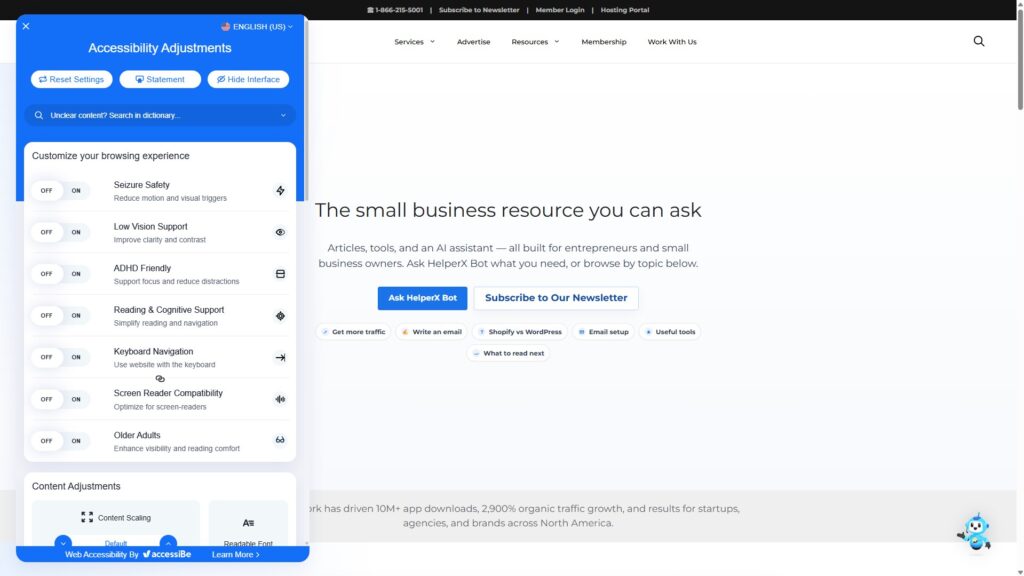
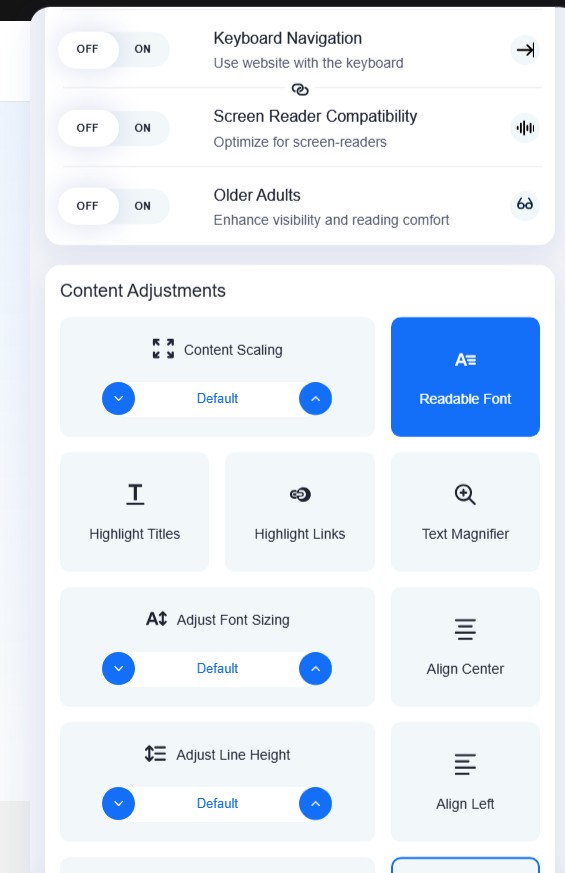
The second part is the accessibility interface your visitors see on the page. It’s the widget button that lets users adjust how they experience your site. Visitors can change visual settings, increase text size, adjust contrast, pause animations, use accessibility profiles, and make other session-based changes that can make the site easier to use.
Those two pieces matter for different reasons. The automated layer helps with maintenance. The interface gives visitors control in the moment.
Installation is one of accessiBe’s strengths. You can use a WordPress plugin, supported CMS integrations, Google Tag Manager, or a JavaScript snippet. For most small business sites, setup is measured in minutes, not weeks.
What we like after years of use
Setup is genuinely easy
We don’t say this lightly because accessibility can get technical fast. On WordPress, accessiBe is about as simple as a plugin setup gets. You install it, connect your account, choose the display settings, and the widget starts working.
That matters for small businesses. A perfect accessibility plan that never gets implemented doesn’t help anyone. accessiBe lowers the barrier enough that a non-technical owner can take a meaningful first step.
The visitor controls are useful
The user-facing widget is the part we’ve appreciated most. It gives visitors practical controls without forcing them to wait for your team to redesign the site.
Someone can increase text size, adjust color contrast, reduce motion, enlarge the cursor, or use preset profiles for different needs. Those features don’t solve every accessibility issue, but they can make a browsing session more comfortable for people who need control over the interface.
That kind of control also sends a signal. It tells visitors you haven’t ignored accessibility entirely. The signal only matters if the tool is useful, and in our experience, accessiBe’s interface is useful.
The ongoing scans reduce maintenance pressure
Most websites change constantly. New blog posts, landing pages, images, forms, buttons, popups, and plugin updates can all create accessibility problems.
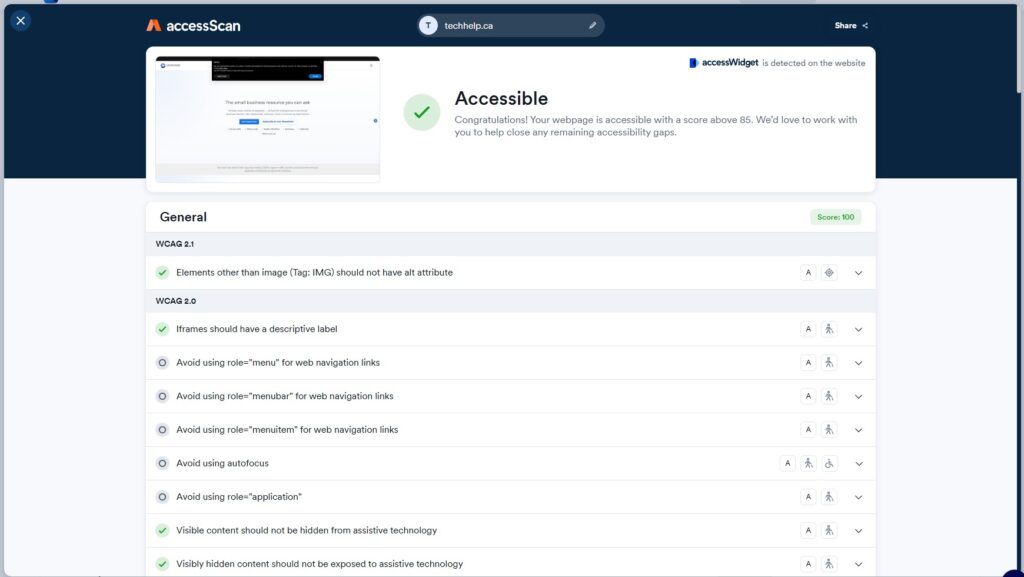
accessiBe’s 24-hour scanning cycle helps catch common issues after changes happen. For a small team, that ongoing monitoring is valuable because most business owners don’t have time to run accessibility checks after every website update.
You still need judgment. Automated alt text won’t always understand context. Automated fixes won’t catch everything. But ongoing scanning is better than doing nothing and hoping the site stays accessible by accident.
It hasn’t noticeably hurt performance for us
Third-party scripts can slow websites down, so this was one of our concerns before using accessiBe. In our experience, the widget hasn’t created a noticeable performance problem.
accessiBe says accessWidget loads asynchronously and doesn’t affect loading speed. We still recommend watching your own Core Web Vitals after installing any third-party tool, because every site stack is different. But on our site, performance hasn’t been a reason to remove it.
The branding and interface controls help it blend in
You can adjust the widget’s appearance so it doesn’t feel pasted onto the site. The interface can be positioned and styled to better match your brand, and accessiBe’s current plan comparison includes branding tools across the accessWidget plans.
This isn’t the most important part of accessibility, but it matters for adoption. If a tool feels visually disruptive, site owners are more likely to hide it, delay installing it, or remove it later.
Support has been good in our experience
We’ve reached out to accessiBe support a handful of times over the years, mostly for configuration questions and one widget-loading issue after a theme update. The responses were helpful, and the people we dealt with seemed to understand the product.
Support quality can vary by plan and situation, so treat that as our experience rather than a universal guarantee. Still, it’s one of the reasons we’ve kept using the tool.
A note on the FTC order
There’s one public record worth covering in any current accessiBe review: the Federal Trade Commission order.
In January 2025, the FTC announced a complaint and proposed order requiring accessiBe to pay $1 million to settle allegations that it misrepresented the ability of accessWidget to make any website compliant with the Web Content Accessibility Guidelines. The FTC also said accessiBe formatted some third-party articles and reviews to appear independent without properly disclosing material connections. The FTC approved the final order in April 2025.
That doesn’t mean accessiBe stopped being useful. It means the word “compliance” should be used carefully. The FTC’s issue was about marketing claims and substantiation, especially claims that an automated product could make any website WCAG-compliant.
The practical takeaway is simple: buy accessiBe for what it does well. It gives small businesses a practical accessibility layer, useful visitor controls, ongoing scanning, and helpful support. Then keep improving the parts of your site that still need human judgment, design care, and code-level fixes over time.
What accessiBe doesn’t replace
accessiBe works on top of the website, which is normal for overlay-style accessibility tools. It can improve parts of the experience, but it doesn’t rewrite your entire source code or replace a thoughtful accessibility process.
Some problems need design and development work. Poor heading structure, confusing form flows, inaccessible custom components, keyboard traps, video accessibility, poorly written content, weak error messages, and unclear user journeys often need a person to evaluate and fix them properly.
The National Federation of the Blind’s 2021 resolution on overlays made a similar point. It said overlays may help with certain parts of nonvisual access, but they can’t guarantee full access to every website where they’re deployed. The resolution also argued that complete and lasting accessibility requires more than a one-time code installation.
That criticism is worth understanding because it sets the right expectation. accessiBe is useful when you treat it as one layer in an accessibility plan, not the entire plan.
accessiBe pricing
accessiBe prices accessWidget based on website traffic. Its current pricing page says it calculates average monthly visits using Similarweb data from the past six months, including non-unique desktop and mobile visits.
As of this review, annual accessWidget plans are structured like this:
- Micro: $490/year for up to 5,000 monthly visits.
- Growth: $1,490/year for up to 30,000 monthly visits.
- Scale: $3,990/year for up to 100,000 monthly visits.
- Enterprise: custom pricing for sites above 100,000 monthly visits.
Micro gives small sites the core widget, ongoing scans, accessibility reports, documentation, and standard support. Growth adds business-management features such as Google Analytics integration, multi-account management, user and team management, and dedicated case-manager support for litigation-related situations.
Scale adds stronger support for businesses that need more than automation, including yearly expert manual testing, custom fixes to improve accessibility conformance, and attorney consultation. Enterprise adds on-demand expert testing, single sign-on, solution engineering, and a dedicated account manager.
For a small business site with modest traffic, the Micro plan is the best starting point. It isn’t cheap in the sense that free plugins are cheap, but accessibility software with ongoing monitoring, documentation, and support rarely is.
The one pricing detail to watch is traffic measurement. Since the plan is tied to domain-level visits, your tier may be higher than expected if your site gets more total visits than you personally think of as “active” traffic.
What about accessFlow?
accessFlow is accessiBe’s developer-focused platform. It’s built for teams that want to identify, prioritize, track, and fix accessibility issues closer to the code.
That’s a different use case from accessWidget. accessWidget is the fast visitor-facing layer. accessFlow is for teams that want to manage accessibility work in the development process, with audits, issue tracking, code guidance, monitoring, and eligible auto-resolutions.
If you’re a small business with no developer, accessWidget is probably where you’d start. If you have a development team or you’re building a more mature accessibility process, accessFlow is worth reviewing because it gets closer to the source-code work overlays can’t fully replace.
How accessiBe compares with alternatives
The accessibility widget market includes tools like UserWay, AudioEye, and EqualWeb. The differences usually come down to pricing, interface quality, monitoring, documentation, support, and how much human expertise is available beyond automation.
UserWay is a serious competitor and, as of its current pricing page, its widget plans start at $490/year for up to 100,000 page views per month. AudioEye and EqualWeb also offer accessibility tooling with varying mixes of automation and human services.
The key question isn’t only “which widget is cheapest?” A better question is: what happens after the widget finds a problem automation can’t fix?
If the answer is “nothing,” that isn’t a strong accessibility process. If the answer is manual testing, developer guidance, remediation support, and better publishing habits, you’re building something stronger.
That’s why we like accessiBe more when it’s used honestly: as an accessibility support layer, not as a substitute for accessible design and development.
Who accessiBe makes sense for
accessiBe makes sense for small businesses, solo operators, content-heavy websites, and teams that want to improve accessibility quickly without waiting months for a full remediation project.
It’s also a good fit if you want visitors to have immediate control over their browsing experience. The widget’s visual and usability controls are practical, and they help people adjust the site to their needs during the session.
It also works well for site owners who update content frequently. If you’re regularly adding pages, posts, images, forms, or landing pages, the ongoing scans help reduce the risk of small accessibility problems piling up unnoticed.
When you’ll need more than accessiBe
accessiBe probably shouldn’t be your only accessibility plan if you’re in a highly regulated environment, selling to enterprise buyers, dealing with an active accessibility claim, or required to produce formal accessibility documentation beyond the widget’s reports.
Healthcare, finance, education, government, and enterprise software buyers often need deeper evidence. That usually means manual audits, VPAT work, code remediation, user testing, procurement documentation, and accessibility baked into design and development.
The same applies if your website has complex functionality: custom checkout flows, dashboards, web apps, booking engines, logged-in portals, or heavily customized forms. Those experiences need more than an overlay.
Our verdict
We still like accessiBe, and we still use it.
For our own site, it has been easy to run, helpful for visitors, and useful as an ongoing accessibility layer. The setup is simple, the interface is practical, support has been good, and the monitoring gives us more coverage than we’d have if we relied only on occasional manual checks.
We also wouldn’t describe accessiBe as a complete compliance solution. The FTC order is a reminder that automated tools need honest positioning, and the NFB’s overlay criticism is a reminder that accessibility is ultimately about people, not checkboxes.
So here’s our verdict: accessiBe is worth it for many small businesses that want a practical, low-friction accessibility layer. It’s not a replacement for accessible design, thoughtful content, well-structured code, or human review.
Use it for the quick wins and the visitor-facing controls. Then keep improving the parts of your site that automation can’t fully understand.
Make your site more accessible

I can suggest related Tech Help Canada articles based on the topic you’re reading now.

Tech Help Canada Staff researches, writes, and reviews practical content for business owners and professionals. Our coverage spans business, marketing, SEO, technology, and the tools and systems people use to grow and operate online. We focus on clear, useful information backed by research, hands-on experience, and editorial review. Learn more about our team and editorial standards. Need help with something? Contact Us