

A website can look perfectly fine and still have problems underneath.
Pages can load slowly. Search engines may struggle to crawl important content. Security settings can be weak. Forms can break without anyone noticing. Calls to action can get buried. And sometimes the first sign that something’s wrong is a drop in traffic, leads, or sales.
That’s why it helps to periodically check the overall health of your website.
This website health checklist covers the main areas worth reviewing: security, performance, SEO, usability, accessibility, and conversion. You don’t need to fix everything at once. The goal is to identify the problems most likely to hurt your website and prioritize those first.
If you’d prefer to jump straight to results, you can scan your website with Tech Help Canada’s Website Health Report and get a prioritized breakdown.
What is website health?
Website health is a broad measure of how well your website functions across several areas that affect both visitors and search engines.
A healthy website should generally be:
- Accessible to search engines
- Fast enough for visitors
- Secure
- Mobile-friendly
- Easy to navigate
- Accessible to people with different needs
- Technically reliable
- Clear about what visitors should do next
Problems in any of these areas can affect the others. A slow website hurts user experience and conversions. Broken internal links frustrate visitors while making it harder for search engines to discover pages. Security problems can damage trust and potentially take the entire site offline.
Website health isn’t about one score or one tool’s rating. It’s about how well all of these systems work together.
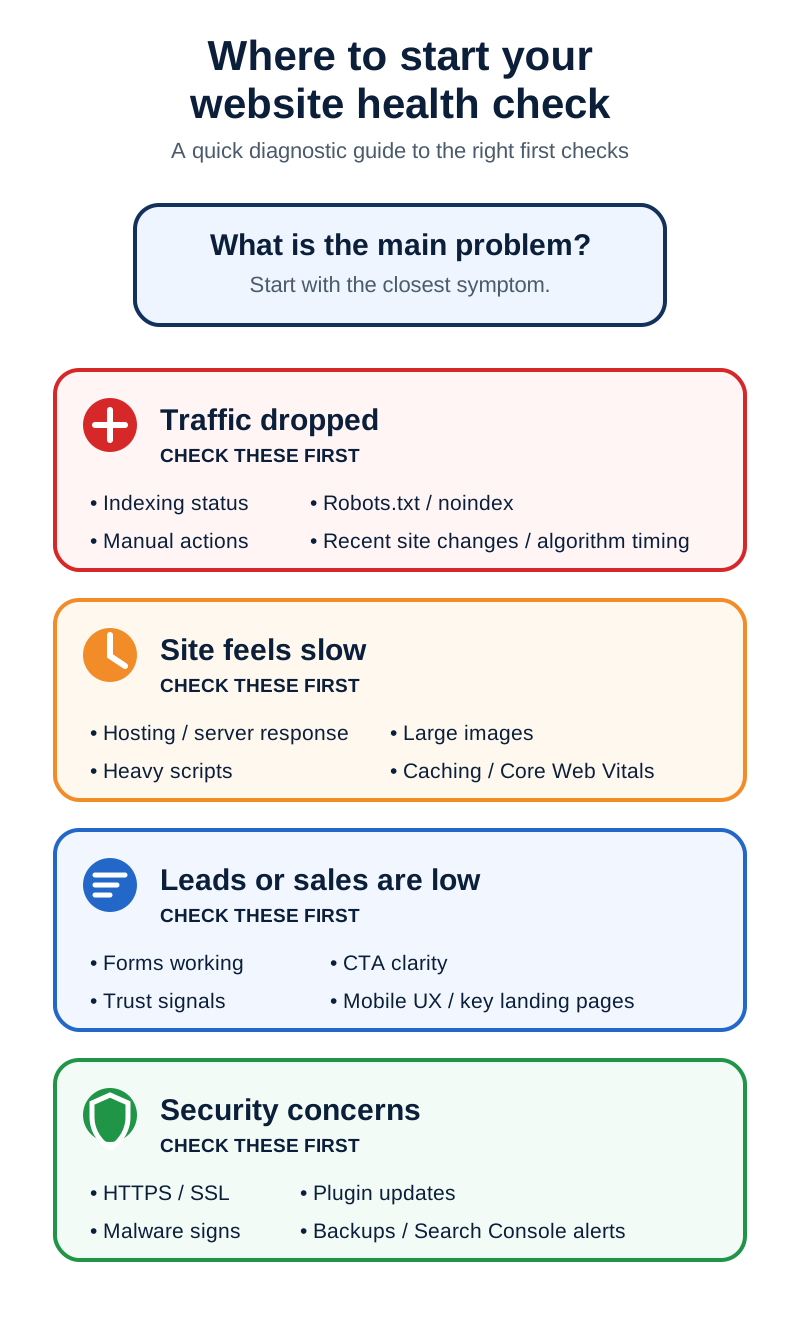
Security
1. Make sure your website uses HTTPS
Your website should load securely using HTTPS rather than HTTP.
HTTPS encrypts the information exchanged between a visitor’s browser and your website. Without it, data like form submissions and login credentials can be intercepted. Modern browsers flag non-HTTPS pages with visible warnings, which can scare visitors away before they even read your content.
Also check that HTTP URLs redirect to their HTTPS equivalents. Leaving both versions accessible creates multiple URL versions of the same content and can make canonicalization less clean.
2. Check your SSL certificate
An expired or improperly configured SSL certificate can trigger browser security warnings and make your website partially or fully inaccessible.
Confirm that your certificate is active, covers the correct domains (including www and non-www versions), and renews automatically. If your certificate lapses even briefly, visitors may see a full-page warning telling them the connection isn’t private. That’s often enough to lose the visit entirely.
3. Check for malware or suspicious changes
Watch for unexpected files, redirects, unknown administrator accounts, injected links, or pages you didn’t create. These are common signs that a site has been compromised.
WordPress sites are especially worth monitoring because their plugin ecosystem creates more potential entry points. Keep themes, plugins, and WordPress itself updated. If Google detects malware or phishing on your site, it may show a “Deceptive site ahead” warning to visitors, which effectively shuts down your traffic until the issue is resolved.
4. Review outdated plugins and software
Old software can introduce security vulnerabilities and compatibility problems. This applies to CMS platforms, plugins, themes, server software, and any third-party scripts running on your site.
Remove plugins and themes you’re no longer using rather than leaving them deactivated. A deactivated plugin can still be exploited if it contains a vulnerability, because the files are still on your server.
5. Check your website backups
A backup only helps if you can actually use it when something goes wrong.
Confirm that you have regular backups running and that they include both the files and the database you’d need to restore the site. It’s also worth knowing where backups are stored and how you’d restore one if you needed to.
How often you back up depends on your site. An ecommerce store processing daily orders needs daily or real-time backups. A static brochure site that rarely changes might be fine with weekly or monthly backups.
A good rule of thumb is the 3-2-1 approach: keep at least three copies of your data, store them on two different types of media, and keep one copy off-site (like cloud storage).
6. Check Search Console for security issues and manual actions
Google Search Console has two reports that can alert you to serious problems.
The Security Issues report flags things like hacking, phishing, or malware detected on your site. The Manual Actions report lists violations of Google’s search guidelines that a human reviewer at Google has identified.
Check both periodically, especially if you notice an unexplained drop in search visibility. A manual action or security issue should take priority over routine SEO improvements, because these problems can suppress your entire site’s presence in search results until they’re resolved.
Performance
7. Test your website speed
Slow websites create friction before visitors even get a chance to see your content. Longer load times increase abandonment, especially on mobile.
Test several types of pages, not just your homepage. A fast homepage doesn’t mean the rest of the site performs well. Product pages, blog posts, and landing pages often have different performance profiles because they load different resources.
Pay particular attention to large uncompressed images, excessive JavaScript, third-party scripts (like chat widgets, analytics, and ad trackers), slow hosting, poor caching, and heavy plugins. Tools like Google PageSpeed Insights, GTmetrix, and WebPageTest can help you identify specific bottlenecks.
8. Check Core Web Vitals
Core Web Vitals are three metrics Google uses to evaluate important aspects of page experience. Search Console’s Core Web Vitals report and PageSpeed Insights field data use the Chrome User Experience Report (CrUX), which is based on real-world Chrome user data.
Google’s “good” thresholds, evaluated at the 75th percentile of page loads, are:
- Largest Contentful Paint (LCP): How quickly the main content loads. Target: 2.5 seconds or less.
- Interaction to Next Paint (INP): How quickly the page responds after a user interacts with it. Target: 200 milliseconds or less.
- Cumulative Layout Shift (CLS): How much the page layout shifts unexpectedly while loading. Target: 0.1 or less.
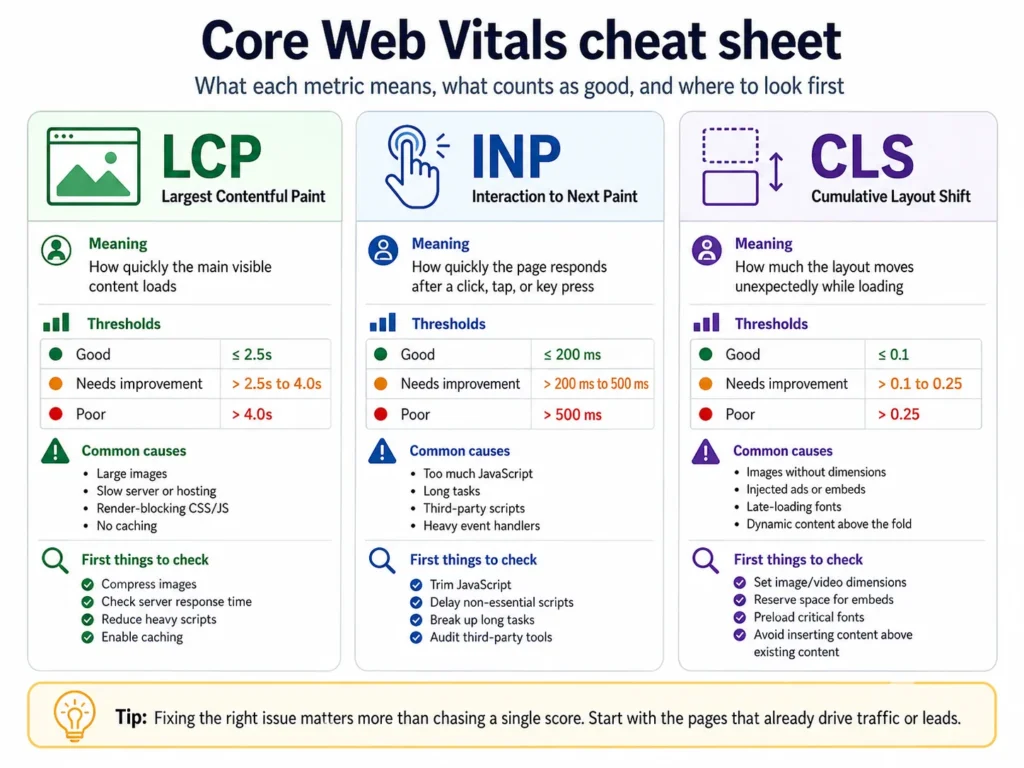
You can check these in Search Console’s Core Web Vitals report or through PageSpeed Insights. Pages with poor results deserve closer investigation, especially if they receive significant organic traffic. Core Web Vitals are used by Google’s ranking systems, but strong scores alone don’t guarantee higher rankings.
9. Check website uptime and reliability
A website can’t generate traffic, leads, or sales when it’s offline.
Occasional downtime happens, but repeated or prolonged outages can point to problems with hosting, server resources, plugin conflicts, network issues, or configuration problems.
If your website matters to your business, consider using an uptime monitoring service so you know when it goes down instead of waiting for a customer or a colleague to tell you.
SEO: crawling and indexing
10. Check whether important pages are indexed
Search engines can’t send organic traffic to a page they haven’t indexed.
Make sure your important pages are eligible to appear in search results and haven’t accidentally been blocked through noindex directives, robots.txt rules, canonical tags pointing elsewhere, redirects, or authentication requirements.
Google’s Page Indexing report in Search Console can help you investigate indexing problems. Look for pages that should be indexed but aren’t, and check the listed reasons for exclusion.
11. Review your XML sitemap
Your XML sitemap should give search engines a clean list of the canonical URLs you want indexed.
Redirected, duplicate, blocked, or non-indexable URLs make the sitemap less useful and can complicate crawling and indexing diagnostics.
Google enforces a limit of 50,000 URLs and 50 MB per sitemap file. If your site is larger, you’ll need a sitemap index. Also note that the <priority> and <changefreq> tags are largely ignored by Google. Focus on keeping your <lastmod> values accurate instead.
12. Check your robots.txt file
A small robots.txt mistake can prevent search engines from crawling large parts of your website.
One of the most common problems is a leftover Disallow: / rule from a staging or development environment that accidentally blocks the entire site after launch. Other frequent mistakes include blocking CSS and JavaScript files (which prevents search engines from rendering your pages properly), case-sensitivity errors, and overly broad wildcard rules.
Review your robots.txt file after major redesigns, migrations, staging environment changes, or SEO plugin adjustments. These are the moments when accidental blocks are most likely to appear.
13. Look for broken links and broken pages
Broken links lead visitors and search engines to pages that no longer exist. They create dead ends for visitors and send crawlers to URLs that no longer provide useful content.
Check both internal and external links. Pay particular attention to pages that receive backlinks or search traffic, because a broken URL there means you’re losing both the visitor and the SEO value those links carry.
When an important page changes location, redirect the old URL to the most relevant replacement rather than leaving visitors on a 404 page. Also review your 404 errors in Google Search Console to catch problems you might not find through manual browsing.
14. Check your redirects
Redirects themselves aren’t a problem, but redirect chains and loops are.
A redirect chain happens when one URL redirects to another, which redirects to another, and so on (A → B → C instead of A → C). Each hop adds latency and makes crawling and troubleshooting more complicated. A redirect loop happens when two or more URLs redirect to each other endlessly, leaving the visitor’s browser stuck.
Check for these after site migrations, URL restructuring, or any major changes to your site’s architecture. Ideally, every redirect should point directly to its final destination in a single hop.
SEO: on-page
15. Review page titles
Every important page should have a descriptive title that accurately reflects what the page is about.
Avoid missing titles, duplicate titles across different pages, extremely vague titles (like just your brand name on every page), and titles that read like a list of keywords rather than something a person would want to click. The title should make sense to both search engines and the real people scanning through search results.
16. Review meta descriptions
Meta descriptions don’t directly affect rankings, but they can influence whether someone clicks your search result over a competitor’s.
Make sure your important pages have useful descriptions that explain what the visitor will find. Avoid duplicates and generic copy that could apply to any page. Google sometimes rewrites meta descriptions if it thinks its version better matches the search query, but a well-written description still gives you the best chance of controlling how your page appears in results.
17. Check your heading structure
Headings help visitors scan a page and understand how the information is organized.
Use heading levels to reflect the page’s logical hierarchy. The main topic should be clear from the primary heading, with subheadings organizing related sections underneath it.
Avoid using heading tags purely because you like how they look visually. Headings carry semantic meaning for both search engines and assistive technologies, so using an H2 just because the font size looks right can create confusion about the page’s actual structure.
18. Check structured data
Structured data helps search engines understand specific information on a page and can make eligible pages qualify for certain rich-result features, such as product information, recipe details, or review ratings where Google’s requirements are met.
If your website uses schema markup, check that it’s valid and still matches the visible content on the page. Structured data can break or become inaccurate after changing themes, plugins, templates, or page layouts. Google’s Rich Results Test and the Schema.org Validator are the two main tools for checking this.
19. Review internal links
Important pages should receive internal links from relevant content elsewhere on your website.
Internal links serve several purposes: they help visitors discover related information, they help search engines find and crawl pages, they establish topical relationships between pages, and they distribute authority throughout your site.
If an important page is difficult to reach through internal links alone, that’s worth fixing. Conversely, if a page you care about has no internal links pointing to it, search engines may treat it as less important than it actually is.
20. Look for thin or outdated pages
Some pages stop being useful over time.
Look for content that’s outdated, extremely shallow, duplicative of other pages on your site, no longer accurate, receiving almost no engagement, or competing with another page targeting the same topic.
The answer isn’t always deletion. Sometimes the better option is updating the page with current information, consolidating it with a similar page, or redirecting it to a more relevant replacement. The goal is to make sure every indexed page on your site is worth a visitor’s time.
21. Check for duplicate content
Multiple pages covering nearly identical topics can make it harder for search engines to determine which page should rank.
Review similar articles, category pages, tag archives, URL parameters, and any automatically generated pages that might create near-duplicate URLs. Common culprits include paginated archives, filtered product listings, and HTTP vs. HTTPS or www vs. non-www versions of the same page.
Google typically handles this by choosing one version to index and filtering the rest rather than penalizing you. But that filtering means some of your pages won’t appear in search results, and the version Google picks might not be the one you’d prefer.
Usability and accessibility
22. Test the mobile experience
Open your website on an actual phone.
Check whether text is easy to read without zooming, buttons and links are easy to tap without hitting the wrong one, menus work correctly, forms fit the screen, pop-ups don’t obstruct content, and images display properly.
A website can be technically responsive (meaning the layout adjusts to the screen size) and still provide a poor mobile experience. Elements that are too small, too close together, or hidden behind awkward interactions can make a responsive site frustrating to use on a phone.
Mobile traffic represents a major share of web usage, and for many websites, mobile visitors outnumber desktop visitors.
23. Test your navigation
A visitor should be able to understand where they are and where they can go next.
Ask yourself whether the most important areas of the site are easy to find, whether the menu is overloaded with too many options, whether labels are clear and understandable, and whether users can return to key pages quickly from anywhere on the site.
Navigation also affects your site’s internal structure. A well-organized menu reinforces the relationships between your pages, which helps both visitors and search engines understand what your site is about and how its content connects.
24. Check website accessibility
Accessibility problems can make a website difficult or impossible for some people to use. This includes people who rely on screen readers, keyboard navigation, or other assistive technologies.
Key areas to review include text contrast (low contrast between text and background makes content hard to read), image alt text (missing or unhelpful alt text leaves images invisible to screen readers), form labels (unlabeled form fields are difficult to interact with using assistive tools), keyboard navigation (every interactive element should be reachable and usable without a mouse), and focus indicators (visible focus states help keyboard users track where they are on the page).
Color contrast alone is a widespread issue. In WebAIM’s 2026 analysis of one million home pages, 83.9% had low-contrast text below WCAG 2 AA thresholds. Accessibility isn’t something you can fully evaluate by glancing at a page for a few seconds. It should be part of your site’s broader quality review, and WCAG 2.2 is the current W3C Recommendation, with Level AA as a common conformance target for websites.
Conversion
25. Test your forms
Don’t assume a form works just because it looks fine on the page.
Submit your contact forms, quote request forms, newsletter signup forms, registration forms, and checkout forms. Then confirm the submission actually reaches the correct destination. Check that confirmation emails send, that CRM entries are created, and that the data arrives where it’s supposed to.
A broken form can cost a business leads for weeks before anyone realizes there’s a problem. This is one of the simplest checks on this list, but it catches issues that are surprisingly common.
26. Review your calls to action
Every important commercial page should make the next step obvious.
Visitors shouldn’t have to guess whether they should contact you, request a quote, start a trial, buy something, or use a tool. If the desired action isn’t clear within a few seconds of arriving on the page, you’re likely losing conversions.
Check whether your primary calls to action are easy to find, relevant to the page they’re on, understandable without context, and actually working when clicked.
27. Check trust signals
Visitors make credibility judgments quickly, and the signals on your website either support or undermine those judgments.
Depending on your business, useful trust signals can include clear contact information, an about page with real details about who you are, customer reviews and testimonials, privacy information, security indicators (like HTTPS and payment badges), company details, and transparent pricing or policies.
You don’t need every possible trust signal. You need enough for someone to feel comfortable taking the next step, whether that’s filling out a form, making a purchase, or picking up the phone.
Analytics and monitoring
28. Review your highest-traffic landing pages
Your most important pages deserve more attention than pages hardly anyone visits.
Use your analytics platform and Google Search Console to identify the pages receiving the most organic impressions, organic clicks, website sessions, and conversions. These are the pages where improvements have the biggest payoff.
Check these pages first when evaluating website health. A small improvement to a high-traffic page — faster load time, a clearer CTA, a better meta description — can matter more than fixing ten pages that barely get any visitors.
29. Look for sudden traffic changes
Unexpected traffic changes can reveal website problems that aren’t visible from the front end.
If organic traffic drops without an obvious explanation, investigate whether anything changed around the same time. Possible causes include ranking losses, indexing problems, technical changes (like an accidental noindex tag), website migrations, algorithm updates, content changes, increased competition, and shifts in search behavior.
Avoid assuming every traffic decline has the same cause. A rankings drop after an algorithm update requires a different response than a drop caused by an accidental robots.txt block. Diagnose the problem before making major changes.
30. Prioritize problems instead of fixing randomly
A website health check can easily produce dozens of findings. They aren’t equally important.
A security vulnerability, a broken checkout flow, an indexing problem blocking your most important pages, or a major performance issue should receive attention before a minor formatting inconsistency or a missing meta description on a low-traffic page.
A useful way to prioritize is:
- Critical problems — security vulnerabilities, broken revenue-generating pages, site-wide indexing blocks
- High-impact problems — slow page speed on key landing pages, missing or broken CTAs, major accessibility failures
- Moderate issues — duplicate content, thin pages, heading structure problems
- Informational improvements — minor meta description tweaks, low-priority formatting
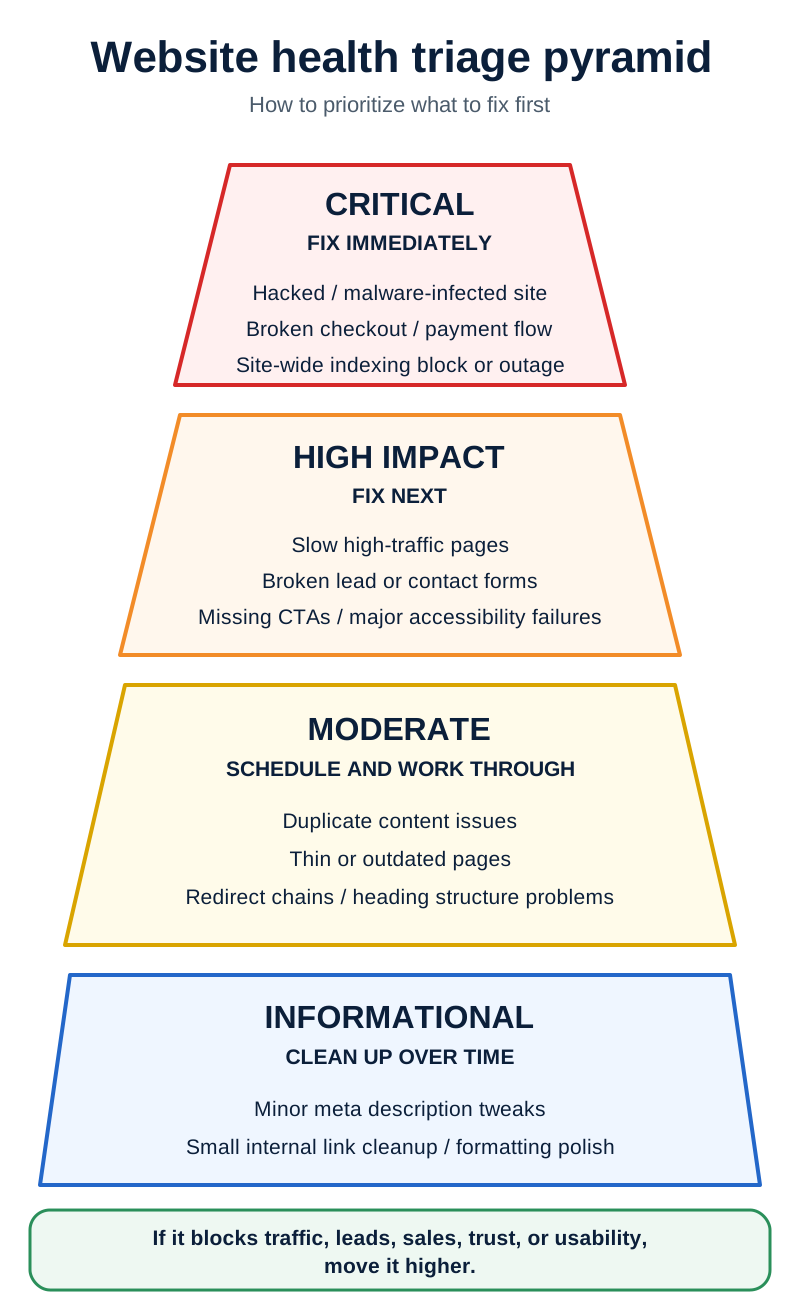
That keeps you focused on the changes most likely to improve the website rather than working through a list at random.
How often should you check website health?
There isn’t one schedule that works for every website.
A small brochure site that rarely changes needs fewer checks than an ecommerce store, a membership platform, or a frequently updated publication. The more moving parts your site has, the more often things can break.
At minimum, consider checking your website after:
- Major CMS or platform updates
- Plugin or theme changes
- Website redesigns or restructuring
- Hosting migrations
- Large content additions or removals
- Sudden ranking losses
- Unexpected traffic drops
- Security incidents
It also makes sense to do a broader website health review periodically, even when nothing seems wrong. Problems are easier to fix when you catch them early, before they’ve had time to compound.
The fastest way to check your website
You can work through this website health checklist manually, but some problems are difficult to spot just by looking at the site.
Tech Help Canada’s Website Health Report scans your website across more than 75 factors, covering SEO, security, performance, and conversion signals. Instead of handing you a pile of findings with no direction, the report prioritizes them so you can see what needs attention first.
If you’re wondering whether something on your website could be hurting your traffic, conversions, or overall performance, run a website health report and find out what your site is telling you.

I can suggest related Tech Help Canada articles based on the topic you’re reading now.

Tech Help Canada Staff researches, writes, and reviews practical content for business owners and professionals. Our coverage spans business, marketing, SEO, technology, and the tools and systems people use to grow and operate online. We focus on clear, useful information backed by research, hands-on experience, and editorial review. Learn more about our team and editorial standards. Need help with something? Contact Us