

It’s 11:40, the client wants the final files by noon, and the version they approved is on a laptop sitting at home. The copy on your work computer is two drafts behind, and the video they asked for is too big to attach to an email. File problems like these never feel like a big deal on their own. Add them up over a year, though, and they cost you hours. Worse, they make your business look disorganized at the worst possible moment.
We’ve used Dropbox for about six years, and it’s built into nearly everything we do. Files we save on one computer are waiting on the next one, clients get links instead of attachments, and an accidental deletion is a restore instead of a crisis. It’s affordable for what it does, and Dropbox keeps adding features that make it more useful. This review is long overdue.
The short version: Dropbox is the file sync and sharing service we trust with our own business files, and Standard is the plan we’d pick for most small businesses. It isn’t the right buy for everyone. If you already pay for Google Workspace or Microsoft 365 and only need somewhere to keep documents, the storage bundled with those suites may be enough. And if you want end-to-end encryption on everything without paying for the top plan, a privacy-first service fits you better.
Dropbox
Dropbox is the file sync and sharing service we trust with our own business files, and Standard is the plan we’d pick for most small businesses, including businesses of one. If you already pay for Google Workspace or Microsoft 365 and only need somewhere to keep documents, that bundled storage may be enough. If you want end-to-end encryption on every file, a privacy-first service fits you better.
Pros
- Syncs inside File Explorer and Finder, uploading only the parts of a file that changed
- File requests collect files from clients who don’t have a Dropbox account
- Version history, deleted-file recovery and Rewind undo bad edits, mass deletions and ransomware damage
- Transfer sends as much as 50 GB at a time on Plus and 100 GB on Standard and Advanced
- Standard now works for one person, with 3 TB for $15 a month on yearly billing
Cons
- Reinstalling the desktop app can leave you with a duplicate Dropbox folder
- Conflict folders and conflicted copies need manual cleanup
- Plus keeps old versions and deleted files for only 30 days and can’t password-protect links
- Yearly plans generally aren’t refunded if you cancel partway through
What you get with Dropbox
Dropbox puts a folder on your computer that stays in sync with your account in the cloud. Anything you save there shows up on your other computers, your phone and dropbox.com. Paid plans remove the three-device limit. The mobile app also lets you scan paper documents into PDFs, even on the free plan, which is handy for receipts and signed forms.
Storage is only the starting point. Dropbox also handles file sharing, large file transfers, computer backups, file recovery, PDF editing, eSignatures, video review and, more recently, AI tools that work on the files you already have. It connects to the apps most small businesses run on, including Microsoft 365, Google Workspace, Slack, Zoom, Canva, Adobe Creative Cloud and Salesforce.
The free Basic plan gives you 2 GB and a limit of three devices. That’s enough to see how Dropbox works, but not enough to run a business on. Your plan decides which of these you get. We’ve flagged the differences as we go, and the pricing section lays out each plan.
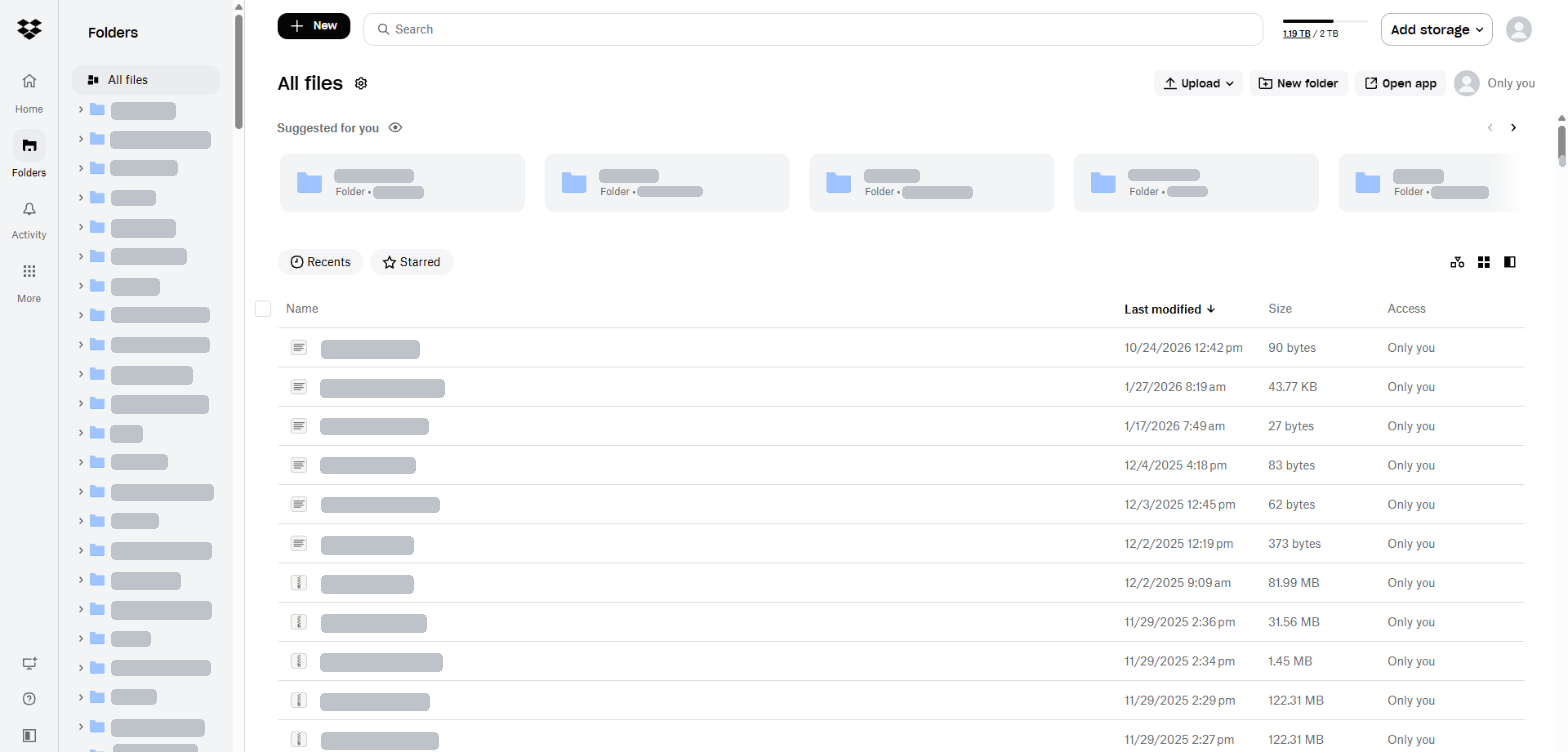
Sync is where Dropbox earns its keep
Most of the time, you don’t open Dropbox at all. It lives inside File Explorer on Windows and Finder on Mac, so saving a file to your Dropbox folder is the whole process. A green checkmark means the file is synced, and your other devices have it moments later.
Dropbox uses block-level sync, which means it uploads only the parts of a file that changed instead of the whole thing again. You feel that most with large files you edit often, since a small change doesn’t mean waiting on a full re-upload before a coworker sees it.
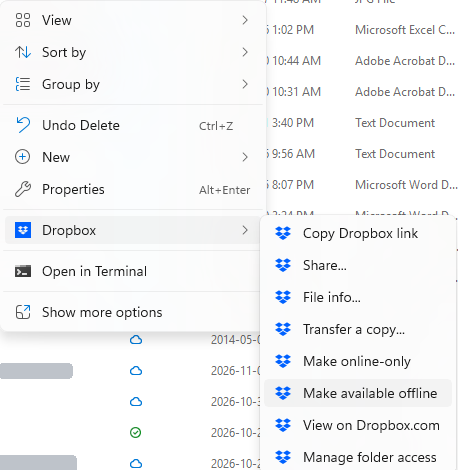
You also choose what lives on each machine. Files set to online-only appear in your Dropbox folder but take up no space until you open them, which keeps a small laptop drive from filling up. Right-click a file or folder and pick Make available offline when you need it without an internet connection. On mobile, making entire folders available offline requires a paid plan, though individual files can be saved offline for free. If there’s a folder you never want on a particular computer, selective sync keeps it off that machine while it stays in your account.
Sharing files with clients, and getting files back
Shared links do most of the work here. You send a link, and the other person can view or download the file without a Dropbox account. On Standard and Advanced, you can add a password, set an expiry date or turn off downloads, and viewer history shows who’s opened a file. Those controls matter once you’re sending contracts, invoices or unreleased work.
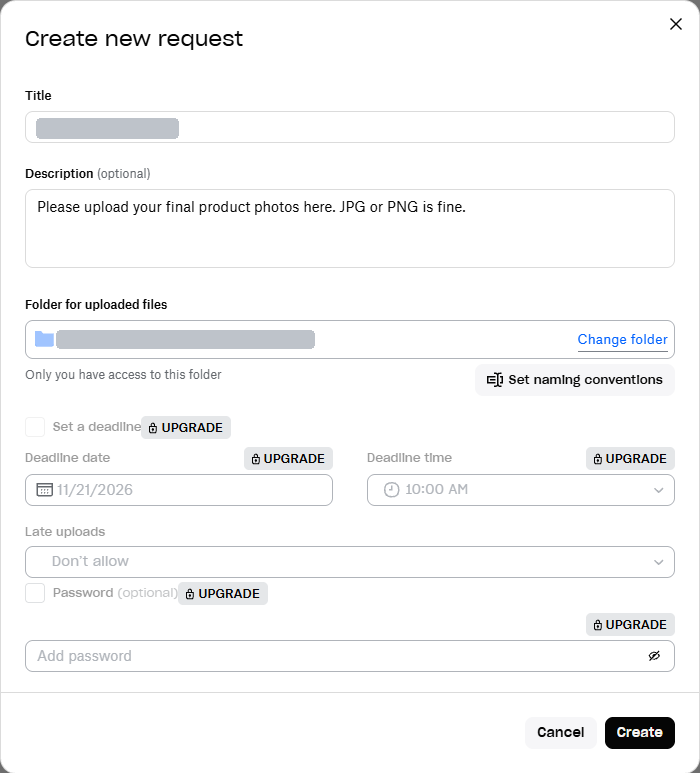
File requests solve the opposite problem. Instead of chasing clients for attachments, you send a request link, and whatever they upload lands in the folder you picked. They don’t need a Dropbox account, and every plan includes the feature. Keep an eye on your storage, though, because everything people upload counts against your quota.
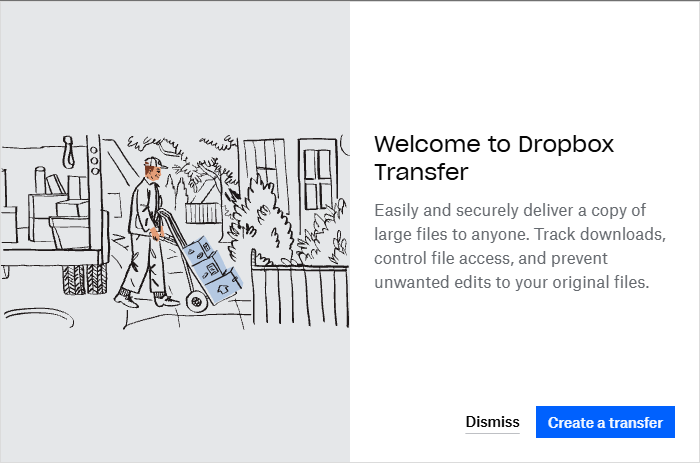
For big deliveries, Dropbox Transfer lets you send as much as 50 GB at a time on Plus and 100 GB on Standard and Advanced. Recipients don’t need an account, and you can see when your files have been downloaded. Standard and Advanced also let you password-protect transfers and add your branding.
If you send video to clients for feedback, Dropbox Replay lets them leave comments on specific moments. Paid plans include four Replay uploads, which covers the occasional review but not a full production schedule.
File recovery is the feature you’ll be glad you paid for
Dropbox keeps older versions of your files and holds onto deleted ones, so a bad edit or an accidental delete is reversible. How far back you can go depends on your plan: 30 days on Plus, 180 days on Standard and a full year on Advanced. Previous versions and deleted files don’t count against your storage.
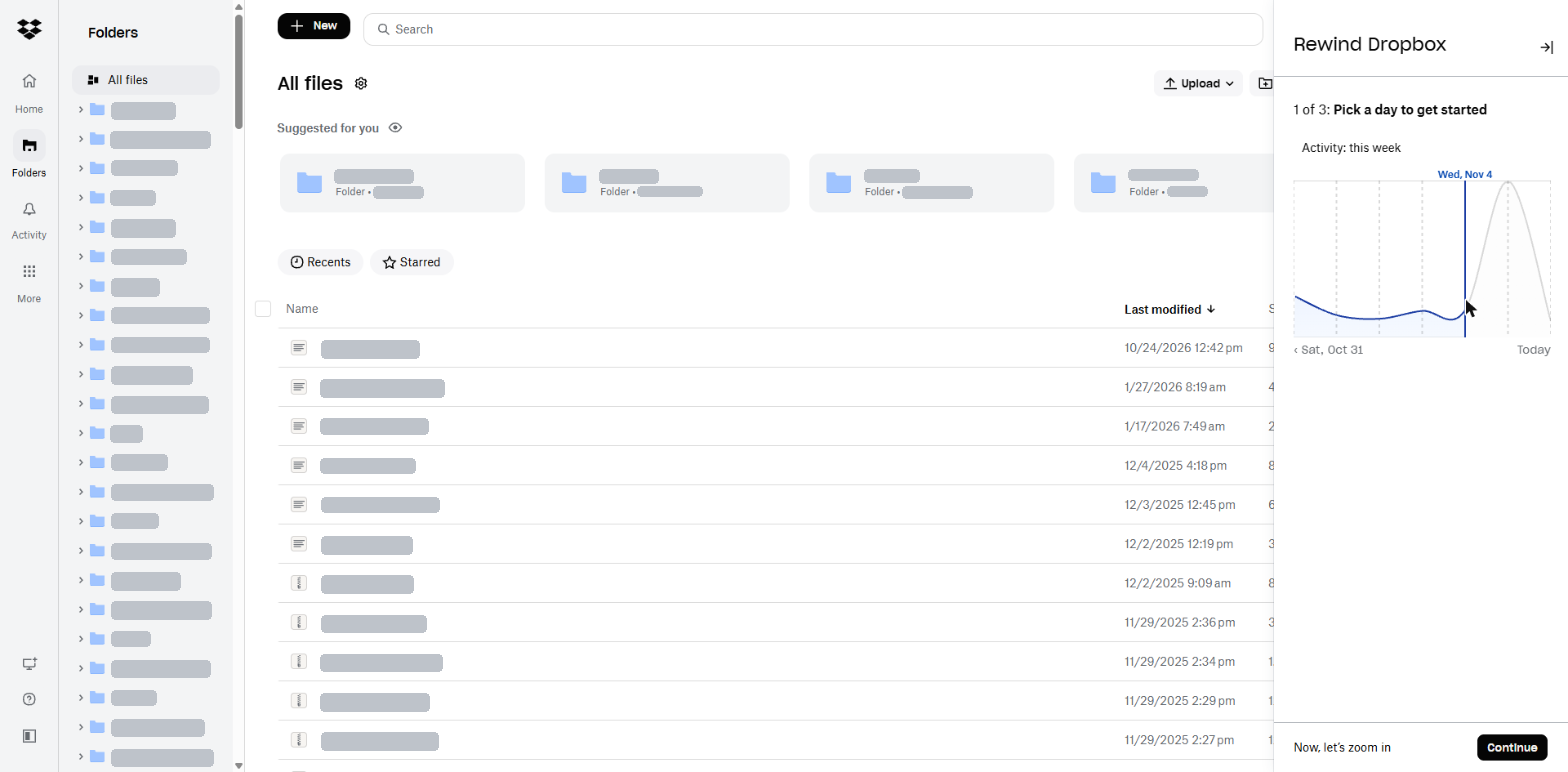
Rewind handles bigger messes. Instead of restoring files one at a time, you roll a folder, or your whole account, back to a specific point in time. It’s the tool you want after ransomware encrypts a shared folder, a teammate drags a project into the wrong place or a sync mistake wipes out hundreds of files, and it belongs in your disaster recovery plan. Rewind works within your plan’s recovery window, so it can’t bring back anything older than that.
For files outside your Dropbox folder, there’s Dropbox Backup. It backs up folders like Desktop, Documents and Downloads automatically and can back up an external drive when you plug it in. Two details catch people out. Backups count against your storage on regular plans, and deleting a backed-up file from your computer also deletes it from the backup. That’s when version history and deleted-file recovery bail you out, which is one more reason the recovery window matters when you pick a plan.
PDF tools, eSignatures and the new AI features
You can edit PDFs in Dropbox, annotate and sign them, and send three signature requests a month on any paid plan. Plus covers basic PDF edits, while Standard and Advanced let you change the existing text. If you send a contract now and then, that’s enough to skip a separate eSignature subscription. If you send contracts every week, three requests won’t last long.
Dropbox connects to ChatGPT and Claude on every plan, including free Basic, though availability also depends on the AI service you’re using. Instead of downloading a file and uploading it to a chatbot, you connect the AI tool to your Dropbox, work with your files there and save the results back. A connected tool can search the files your account can reach, so follow a few basic data safety rules before you point it at client material.
The bigger change is AI in Dropbox, which Dropbox says has reached more than 70,000 Standard and Advanced teams so far. You describe what you want, and it acts on what’s already in your account. It can rename and organize files in bulk, build a project folder structure, convert or compress files, combine documents into a PDF, summarize a folder, compare two versions of a document and find images from a description.
Before it changes anything, it shows you its plan and waits for your approval. It works within your existing permissions, keeps a record of what it did and lets you undo supported changes. That’s the right design for AI that touches business files, because a bulk rename gone wrong across a client’s deliverables is a mistake you want to catch before it happens.
Availability is the catch. AI in Dropbox is limited to eligible teams in the U.S., U.K. and Australia, in English, and Dropbox plans broader availability in 2027. It runs on monthly AI credits, 250 per person on Standard at the time of writing, and Dropbox says you don’t need a separate account or subscription with the AI provider. Treat it like a fast assistant for tedious file chores, and review its work before anything goes to a client.
Security and privacy: what to know before you store client files
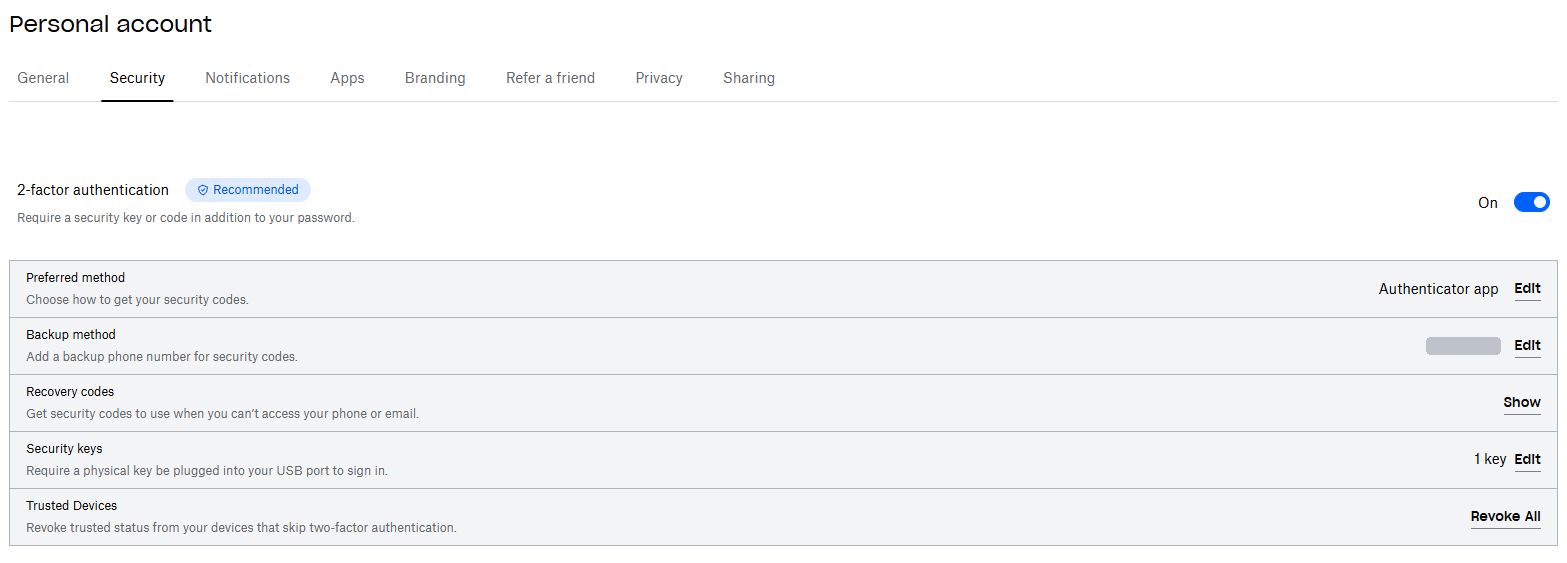
Dropbox covers the basics well. Files are encrypted at rest with 256-bit AES and in transit with SSL/TLS. Every account can use two-step verification, and paid plans add remote wipe for lost or stolen devices. Standard adds device approvals, which let an admin control which devices can connect, and Advanced adds ransomware detection, suspicious activity alerts and end-to-end encryption for team folders.
Unless you use those encrypted team folders, Dropbox holds the encryption keys for your files. That’s typical for mainstream cloud storage, and it’s what makes previews and full-text search possible. Its terms are upfront about it: Dropbox accesses, stores and scans your files to provide features like these. Advanced’s end-to-end encryption protects designated team folders, not every file in your account. Dropbox can’t read the contents of those folders, but content search, previews, shared links and Dropbox’s AI features won’t work with them. Encrypted folders also aren’t supported in Dropbox’s mobile app.
Dropbox’s privacy policy FAQ says it may train models on your documents and metadata to improve search relevance, automatic sorting and document summaries. That FAQ dates from April 2024. Dropbox’s newer AI principles also state that it won’t build generative AI models using customer content without consent. The distinction matters: Dropbox can process your files to provide and improve certain features, but that isn’t the same as freely using them to train generative AI. Keep both policies in mind before storing sensitive client material.
In August 2026, attackers compromised about 5,000 Dropbox accounts through an authentication issue involving Lenovo ID. The affected accounts were linked to Lenovo ID and didn’t have Dropbox’s two-step verification enabled. According to Dropbox, attackers viewed or downloaded files in fewer than a third of those accounts. The company ended the affected sessions, removed the Lenovo ID connections and changed its sign-in process.
An earlier breach affected Dropbox Sign, formerly HelloSign, in April 2024. Attackers accessed customer email addresses and usernames, along with phone numbers, hashed passwords and authentication data for some users. Dropbox reported no evidence that attackers accessed customers’ documents or payment information and said the breach was isolated to Dropbox Sign.
Turn on two-step verification for everyone on day one. If you handle regulated or highly sensitive data, budget for Advanced or encrypt those files yourself before they go into Dropbox.
Dropbox pricing and plans
| Plan | Billed yearly | Billed monthly | Users | Storage |
|---|---|---|---|---|
| Plus | $9.99/month | $11.99/month | 1 person | 2 TB |
| Standard | $15/user/month | $18/user/month | 1 or more | 3 TB for the first user, plus 1 TB for each additional active user, shared |
| Advanced | $24/user/month | $30/user/month | 3 or more | Starts at 15 TB for the team, shared |
| Enterprise | Contact sales | Contact sales | Larger organizations | Custom |
These were Dropbox’s U.S. list prices when we checked on November 6, 2026. Prices vary by country and currency, and taxes are extra. Paying yearly saves about 17% on Plus and Standard and 20% on Advanced. Standard and Advanced both come with a free trial.
If you bought Standard before June 30, 2026, you’re probably on Standard Classic. It keeps 5 TB of shared storage and a three-person minimum.
Which plan fits your business
Plus suits a freelancer or solo owner who mostly syncs files between their own devices and sends the occasional link. You get 2 TB, unlimited devices, Transfer, file requests and basic PDF editing. What it’s missing matters for client work, though. It has the shortest recovery window, shared links can’t carry passwords or expiry dates and support stops at email and live chat.
Standard is where most small businesses should land, and since June 30, 2026, that includes businesses of one. Standard used to require three users, which left solo owners who outgrew Plus with awkward choices. Now one person pays $15 a month on yearly billing, about $5 more than Plus. That buys 3 TB, a much longer recovery window, link passwords and expiry dates, file locking, viewer history, team folders, an admin console, phone support during business hours and access to AI in Dropbox as it rolls out. Price is the most common complaint in G2 reviews of Dropbox, especially the cost of adding storage, and this change addresses part of it.
Advanced makes sense when you need end-to-end encrypted team folders, ransomware detection, single sign-on, audit logs or tiered admin roles, and you have at least three people. If clients trust you with financial or legal records, start your comparison here.
Where Dropbox falls short
Reinstalling the desktop app can leave you with two Dropbox folders
This is the quirk we’ve run into most often. A few times, after we removed Dropbox from a computer and installed it again, the app didn’t pick up the existing Dropbox folder. It set up a brand-new folder and started syncing into that one, which meant a duplicate Dropbox folder on the same machine and a folder location to sort out. Our files were always safe in the account. The cleanup was the annoying part. We haven’t hit it in roughly the last two years, but threads in the Dropbox Community forum show it still happens, usually as a duplicate called “Dropbox (1)” or an old folder renamed “Dropbox (Old).”
The way around it is what Dropbox calls an advanced reinstall. During setup, click Advanced settings and choose the folder that contains your existing Dropbox folder, not the Dropbox folder itself. If yours lives at D:\Work\Dropbox, pick D:\Work. Skip that step and Dropbox creates a new folder and syncs everything again. If you back up your Desktop and Documents folders with Dropbox Backup, Dropbox’s community moderators also suggest turning that backup off before you uninstall.
Conflict folders and conflicted copies need manual cleanup
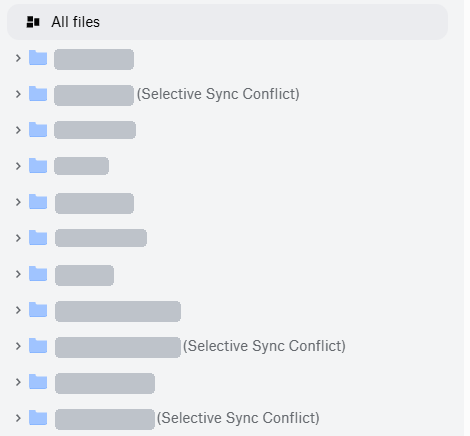
The other thing we’ve seen is duplicate folders with a note in brackets after the name, such as a second Documents folder labeled “(Selective Sync Conflict).” Dropbox adds that label when two different folders with matching names end up in the same place. It usually happens after a folder was removed from a computer with selective sync and a new folder with the same name was created there.
Files get similar treatment. When two people edit the same file at the same time, or someone edits it offline while someone else changes it, Dropbox saves the later version as a separate conflicted copy with the editor’s name and the date in the file name.
Nothing gets deleted, and that’s deliberate, since Dropbox can’t know which version you want. It won’t merge them for you, though. You open both, keep what you need and delete the rest, and empty conflict folders can go right away. To avoid repeats, look on dropbox.com for an existing folder before you create one with that name, and use a real-time editor such as Microsoft 365 on the web for files several people work on at once.
Mac users get less say over where Dropbox lives
On Macs using Apple’s File Provider system, Dropbox normally stores your files in a designated location inside your user Library. Dropbox recommends the newer integration, but migrating to it isn’t mandatory. If you want to move a File Provider Dropbox folder onto an external drive, you’ll need macOS 15.4 or later, an encrypted APFS drive and fewer than 500,000 files in your Dropbox folder.
Billing causes most of the complaints you’ll read
Business software review sites rate Dropbox well. As of November 6, 2026, it held 4.4 out of 5 on G2 from more than 31,000 reviews and 4.5 on Capterra from more than 21,000. Trustpilot is a different picture, with a score of 1.3 from about 1,600 reviews, and many of the complaints there involve surprise renewals, trouble cancelling and frustration with support.
A little planning keeps you out of that situation. Pay monthly at first if you’re not sure Dropbox is for you, and put your renewal date in your calendar. Dropbox generally doesn’t refund the unused part of a yearly plan when you cancel. Your plan stays active until the term ends, and then your account drops to the free plan. If you’re storing more than 2 GB at that point, syncing and uploads stop, and if you stay over the limit, Dropbox may eventually delete your least recently modified files after warning you.
Dropbox vs. Google Drive, OneDrive and other alternatives
A productivity suite already comes with cloud storage. Google Workspace Business Standard includes 2 TB per user, pooled across your team, and Microsoft 365’s business plans come with 1 TB of OneDrive storage per user.
Dropbox is worth adding to a suite when your work is mostly files rather than documents you write in a browser. Think design files, video, photos, PDFs and deliverables you send to people outside your company. That’s where file requests, Transfer, block-level sync and Rewind pay off. Plenty of businesses, ours included, pay for both.
If privacy comes first, look at Sync.com. It builds end-to-end encryption into every plan, so the company can’t read your files. In exchange, you give up much of the integration list and the AI features covered above.
Our verdict
Dropbox has rough edges, but none of them has ever cost us a file. The everyday job of keeping our work synced, shareable and recoverable is something it does so consistently that we stopped worrying about it a long time ago. For most small businesses, that’s the part worth paying for.
Start with a Standard trial and give it a real project. Move one active client folder in, send a file request for the next batch of files you need from someone and restore an older version of a document so you know how it works before the day you need it. If that week goes smoothly, you’ll see why we haven’t looked elsewhere.
Dropbox
Dropbox keeps your business files in sync across every computer and phone, makes it easy to send big files to clients and collect files back, and gives you a way back when something gets deleted or overwritten. Standard is the plan we’d pick for most small businesses, including businesses of one.
Why we like it
- Block-level sync inside File Explorer and Finder, with online-only files to save disk space
- File requests and Transfer for collecting and delivering files, no Dropbox account needed on the other end
- Version history, deleted-file recovery and Rewind to roll back a folder or your whole account
- Dropbox Backup for your Desktop, Documents and Downloads folders
- Connects to ChatGPT and Claude on every plan, plus Microsoft 365, Google Workspace, Slack and Zoom
Worth knowing
- Reinstalling the desktop app can create a duplicate Dropbox folder unless you use Dropbox’s advanced reinstall.
- Plus keeps old versions and deleted files for 30 days and can’t put passwords on shared links, so most businesses are better off on Standard.
Plan Details
Special invite

I can suggest related Tech Help Canada articles based on the topic you’re reading now.

Tech Help Canada Staff researches, writes, and reviews practical content for business owners and professionals. Our coverage spans business, marketing, SEO, technology, and the tools and systems people use to grow and operate online. We focus on clear, useful information backed by research, hands-on experience, and editorial review. Learn more about our team and editorial standards. Need help with something? Contact Us